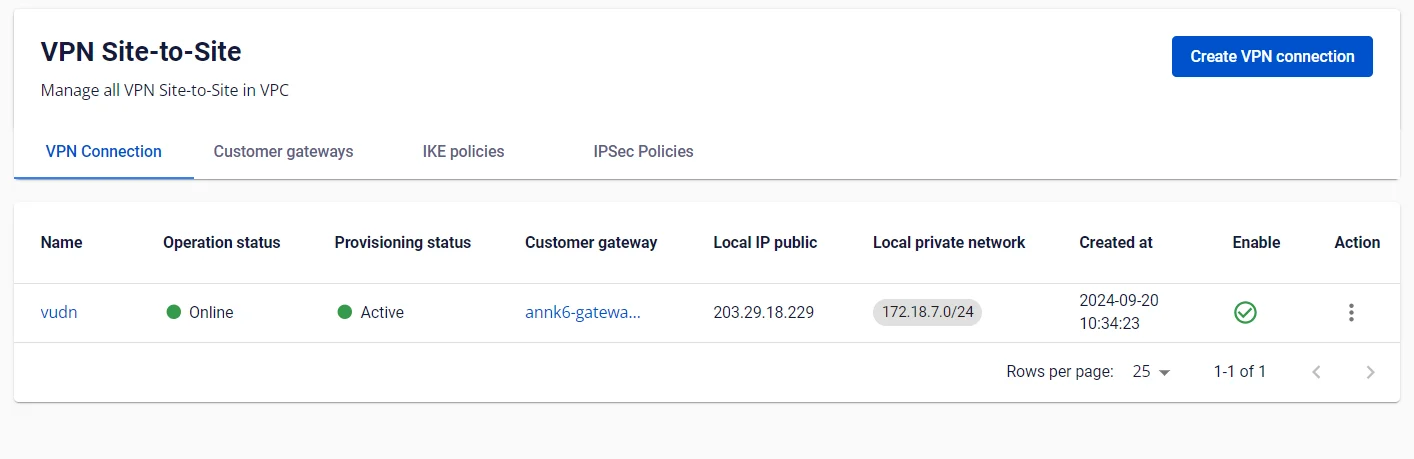
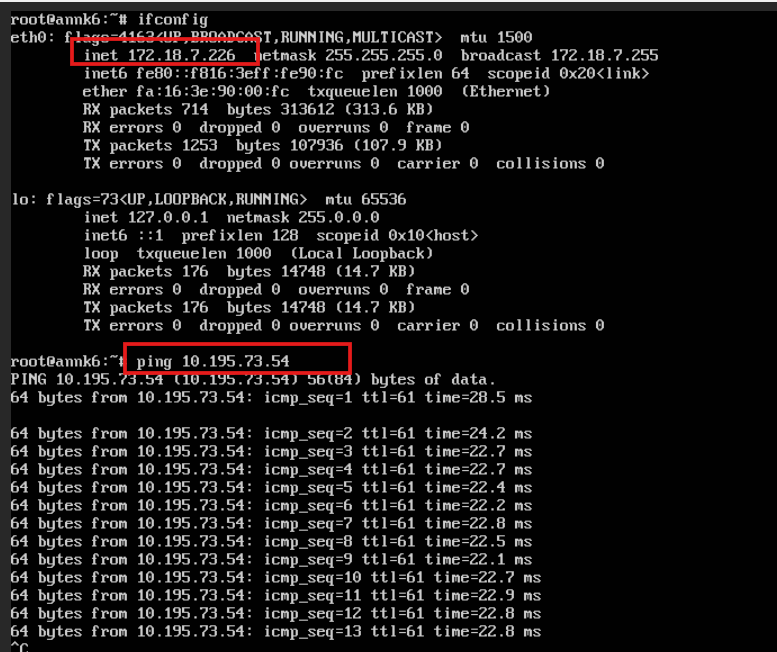
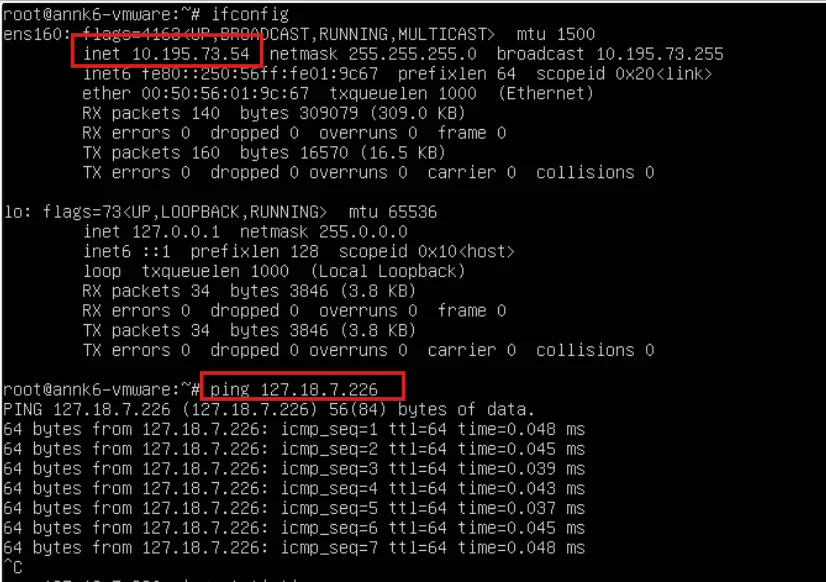
Step 1: Configure VPN_AAS on Openstack
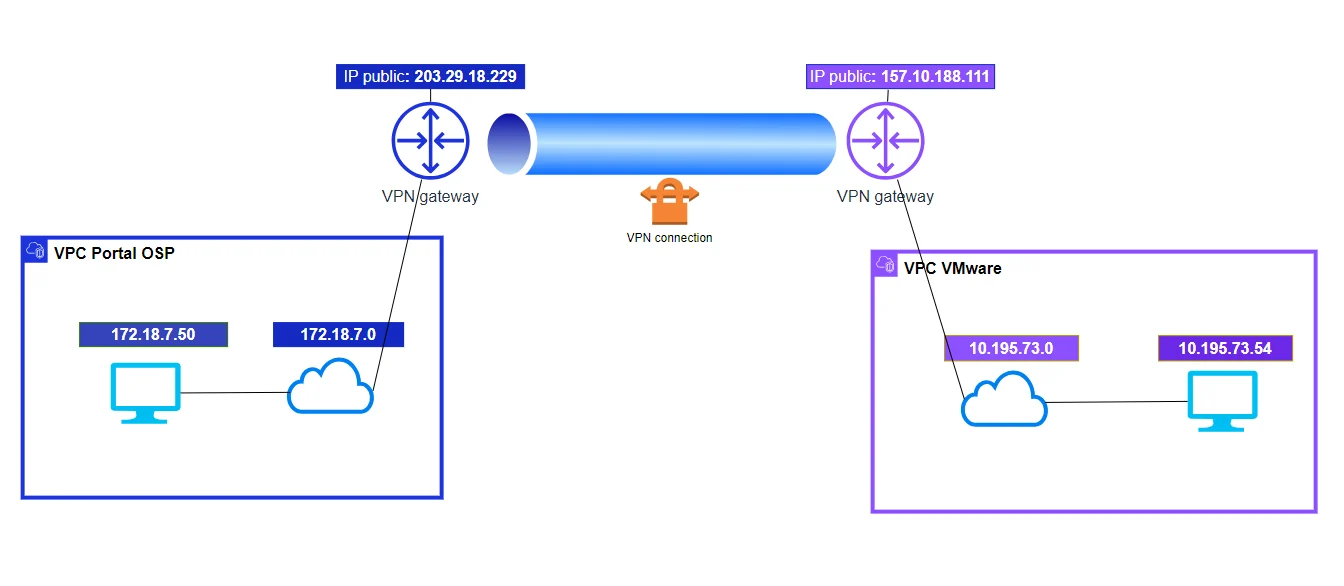
In this example, we will create a VPN Site-to-Site connection with the parameters shown in the topology below.
 Access and create a VPN Site-to-Site on https://console.fptcloud.com
-Tạo Customer Gateway
+Remote IP public: is the floating IP of the VPN gateway VMW
+Remote private network: is the Lan Subnet sequence that needs to be peered by VMW
Access and create a VPN Site-to-Site on https://console.fptcloud.com
-Tạo Customer Gateway
+Remote IP public: is the floating IP of the VPN gateway VMW
+Remote private network: is the Lan Subnet sequence that needs to be peered by VMW 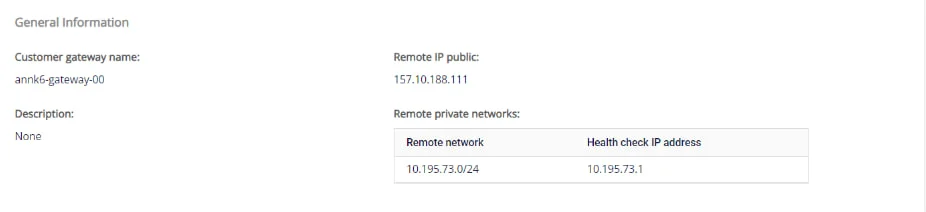
- Create a VPN Connection With the parameter "Pre-shared key" that needs to be saved to be filled in when initiating a VPN Connection on VMW.
The specifications of VPN Connection will include 3 main sections:
- General information (contains general information of the VPN connection)
- Remote VPN Information (contains encryption information and customer information)
- Dead Peer Detection (the number of times the system automatically retries to connect when there is a problem)
Section 1: General information
 Section 2: Remote VPN information
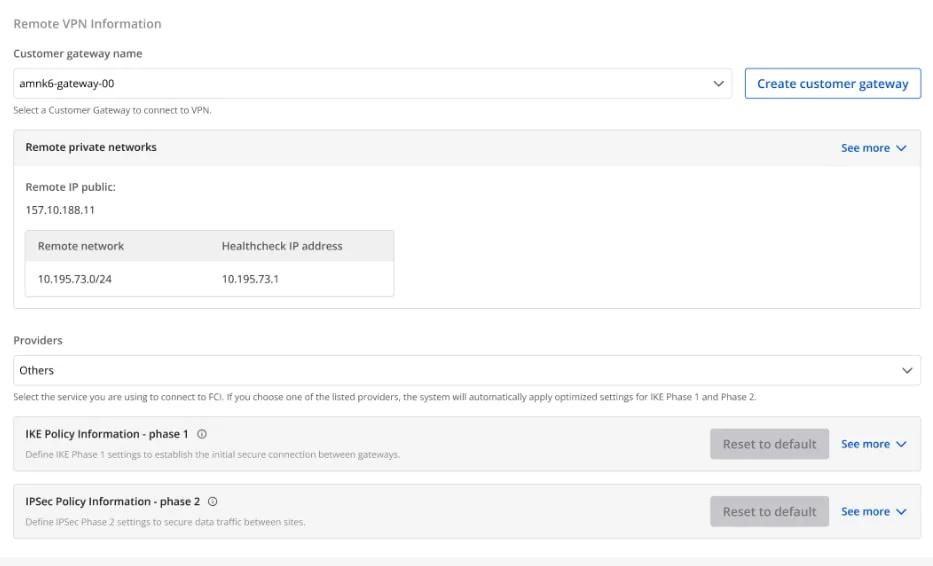 If you select Providers = "others" , then follow these steps:
- Step 1: Fill up providers name = "VMWare"
- Step 2: Fill in the information for IKE and IPSec, specifically as follows:
For IKE:
- Encryption algorithm: aes-256
- Authorization algorithm: sha256
- IKE version: ikev2
- Lifetime units: seconds
- Lifetime value: 28800
- DH Group: GROUP_14
- Phase1 negotiation mode: main
For IPsec:
- Encapsulation mode: tunnel
- Encryption algorithm: aes-256
- Authorization algorithm: sha256
- Lifetime units: seconds
- Lifetime value: 3600
- Perfect forward secrecy (PFS): GROUP_14
- Transform protocol: esp
Section 3: Dead Peer Detection 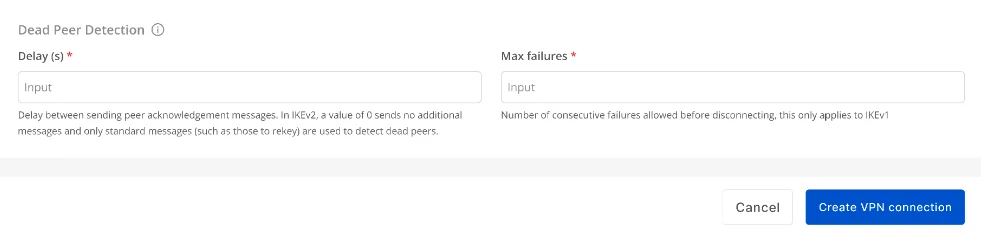 After filling in all the information, please select "Create VPN Connection "
Step 2: Configure VPN_AAS on VMWare Cloud
-Go to the VMWare system to set up, then click
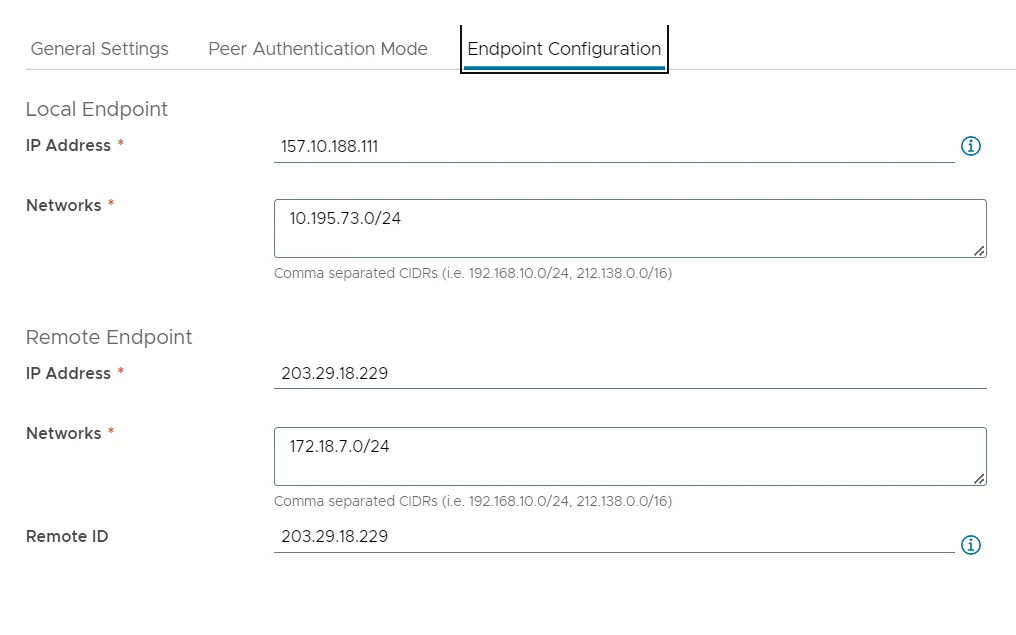
- Enter the Endpoint Configuration fields
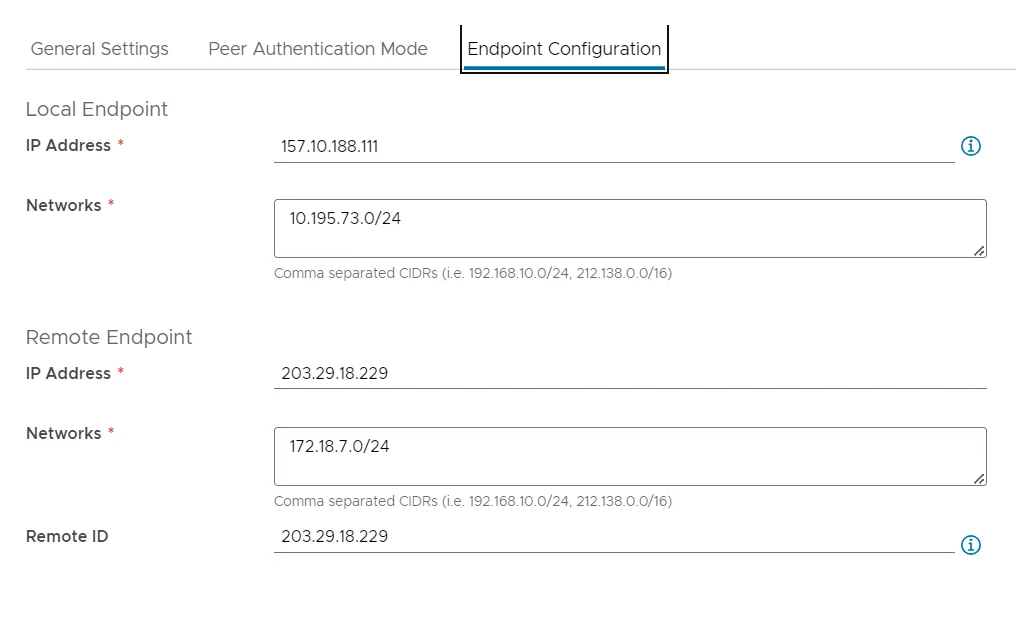
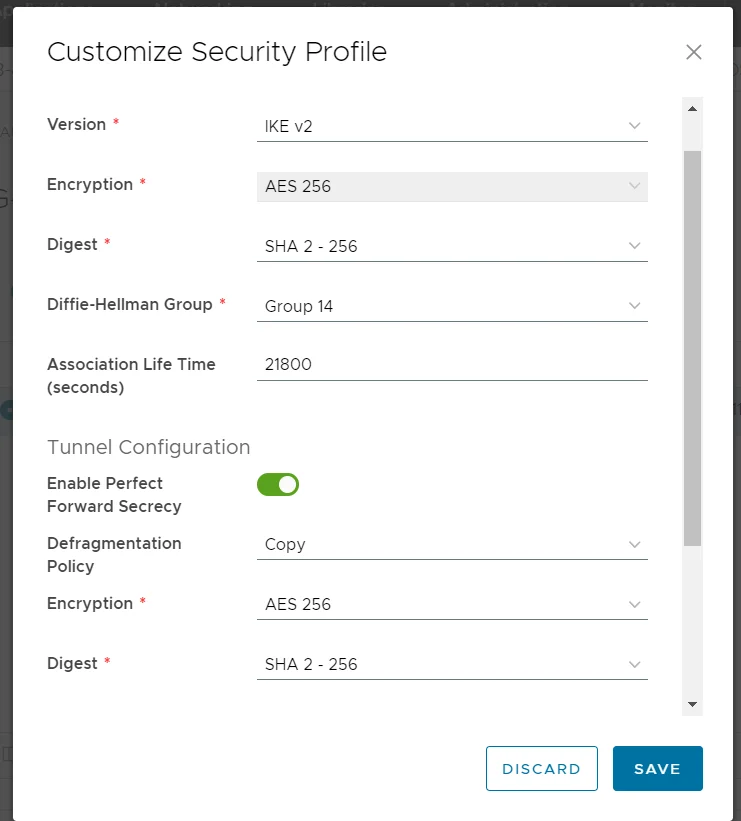
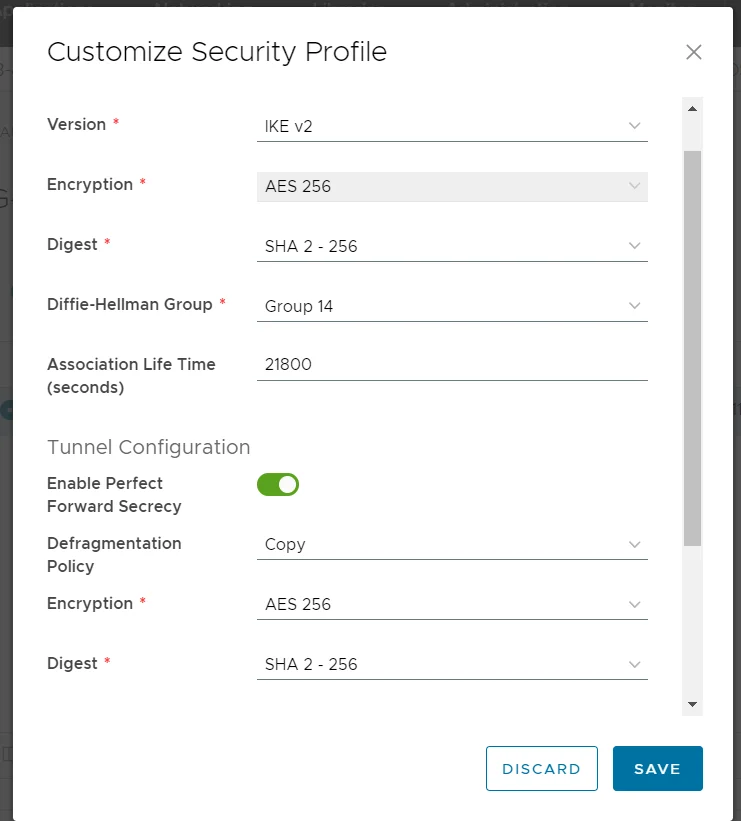
- After creation, select Customize Security Profile to edit the IKE policy, IPSec policy to match the IKE policy, IPSec policy created in OSP.
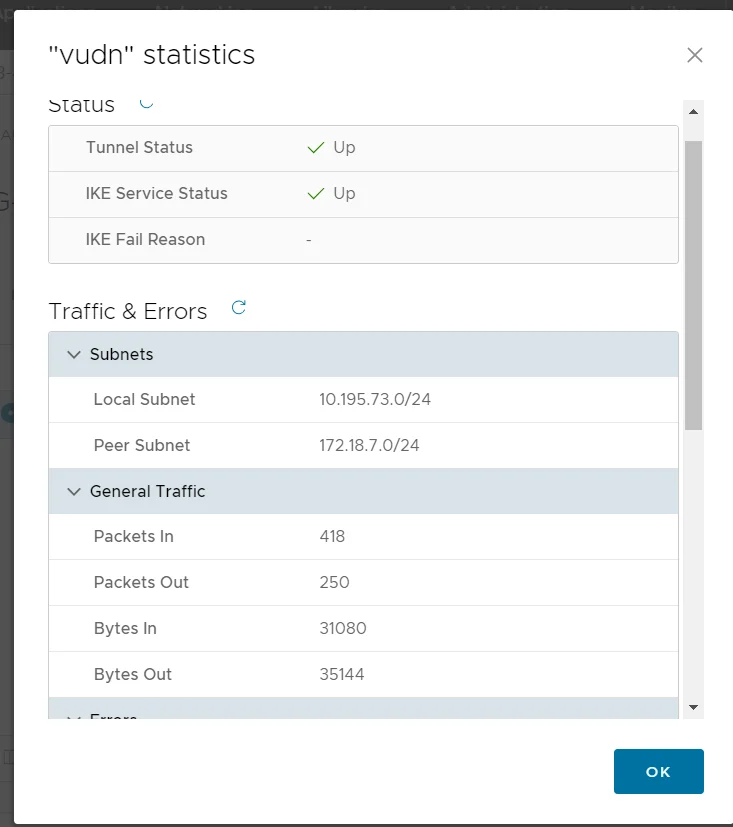
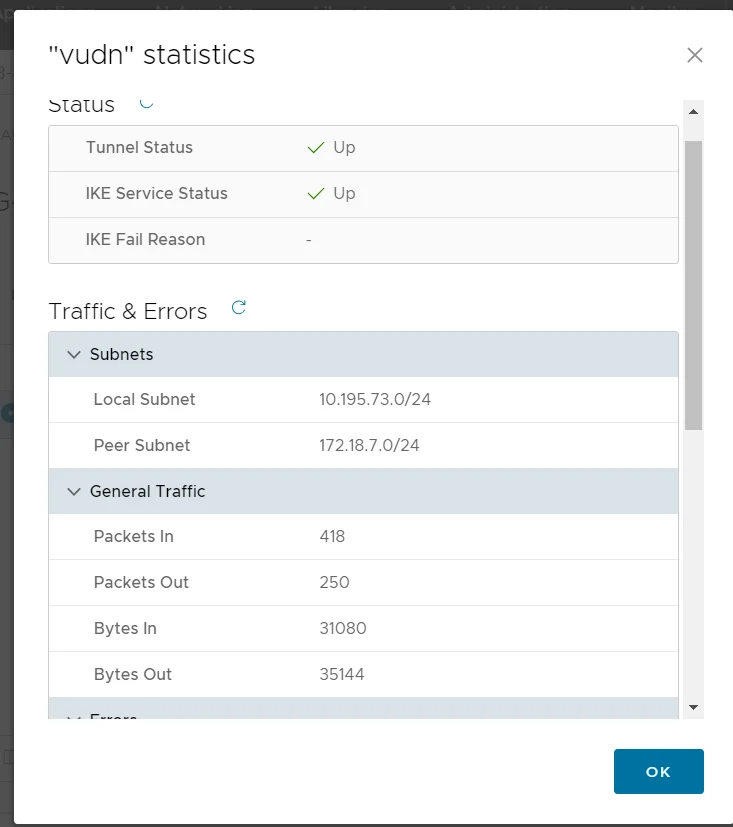
- Select View statistics , to check the connection status. If the display status is UP , → have successfully connected between the 2 sites.file
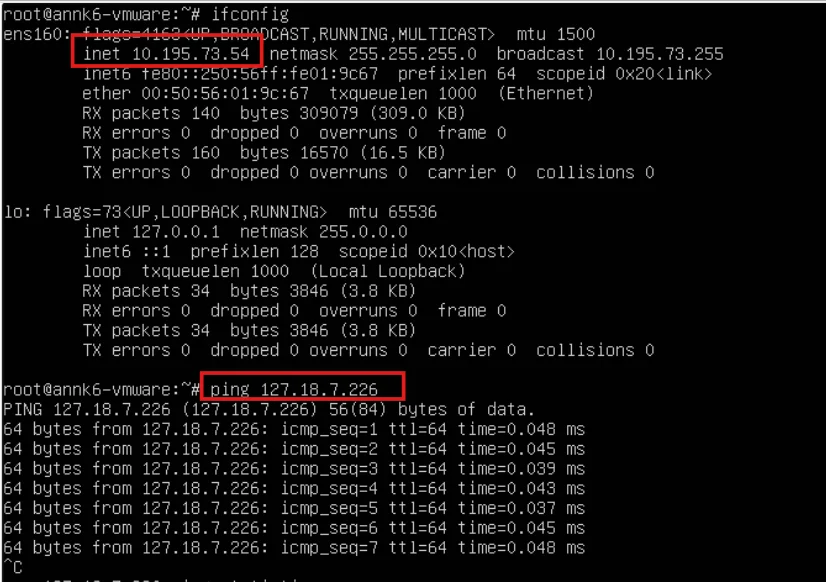
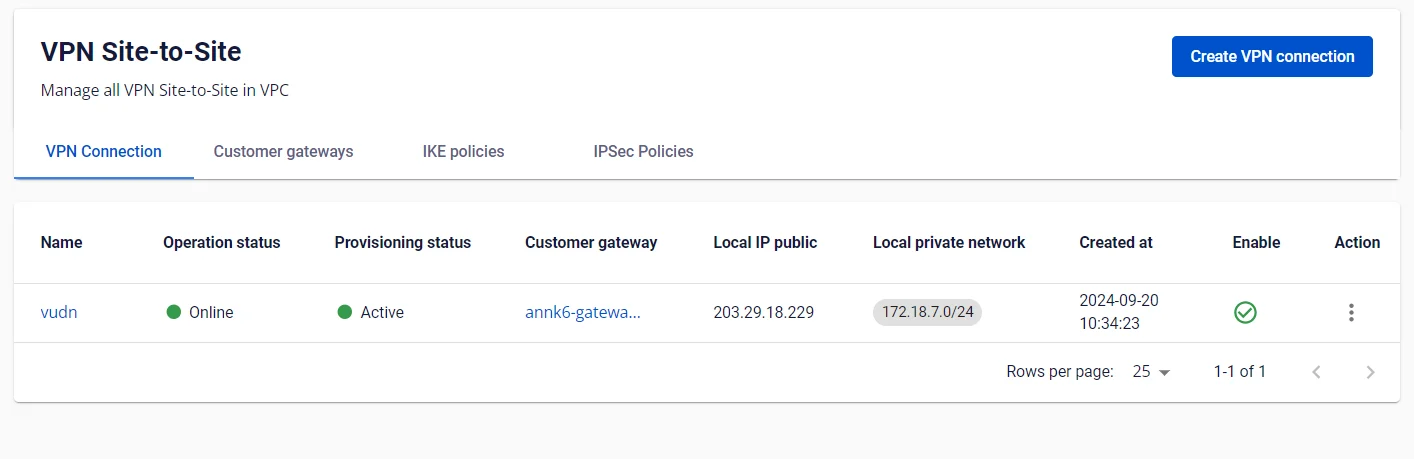 Step 3: Check the connection Ping from VM OPS -> VM VMWare
 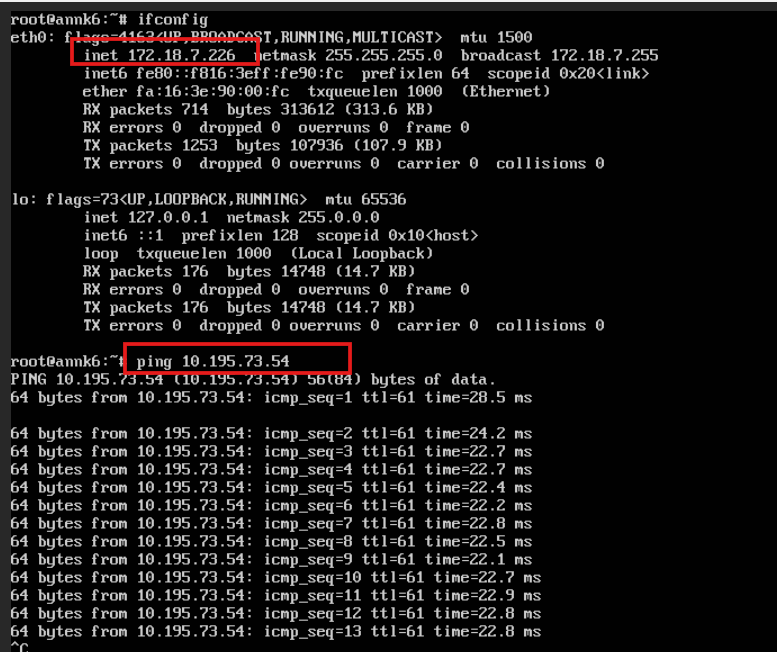 Ping from VM VM WMare-> VM OSP