RSA private key for this host, authenticating it to any other host
Bài viết này hướng dẫn build thiết bị Router để đấu nối VPN_S2S với dịch vụ VPN Site-to-site của FPT Smart Cloud.
Cần đảm bảo các điều kiện sau:
- VPNAAS trên trang Portal
- Ubuntu 20.04 đã được download và cài đặt : strongSwan 5.9.14
- Public IP, giảm độ phức tạp thì gắn trực tiếp vào VM, không dùng Floating IP
- 1 VM Pfsense để phục vụ debug (Optional )
Bước 1: Build strongSwan
*** Lưu ý: Để build strongSwan, chỉ tiến hành chọn cách 1.1 hoặc cách 1.2** 1.1: Build strongSwan 5.9.14 from source (tiến tới làm chủ công nghệ)
- Trên Horizon ta tiến hành tạo VM từ image với các thông số keypair của user và network provider bất kì.
- Cài đặt các gói sau:
Copyapt-get update
apt-get install vim git wget traceroute ngrep net-tool gcc g++ libgmp-dev build-essential devscripts debhelper dh-make autoconf automake libtool checkinstall nmap curl
- Download source strongSwan từ link sau:
Copywget https://github.com/strongswan/strongswan/releases/download/5.9.14/strongswan-5.9.14.tar.gz
tar -xzvf strongswan-5.9.14.tar.gz
cd strongswan-5.9.14/
- Tiến hành configure và make file cho source code:
Copy./configure --prefix=/usr --sysconfdir=/etc
make
checkinstall
1.2: Cài đặt strongSwan từ Repo
Copyapt-get update
apt install strongswan strongswan-pki
1.2: Cài đặt strongSwan từ Repo apt-get update apt install strongswan strongswan-pki
Bước 2: Cấu hình cho VPN Site-to-Site
Truy cập và tạo VPN Site To Site trên trang https://console.fptcloud.com/
- Tạo Customer Gateway:
+Remote private network: dãy Lan Subnet cần peering của Vyos
+Remote IP public: IP public của Vyos
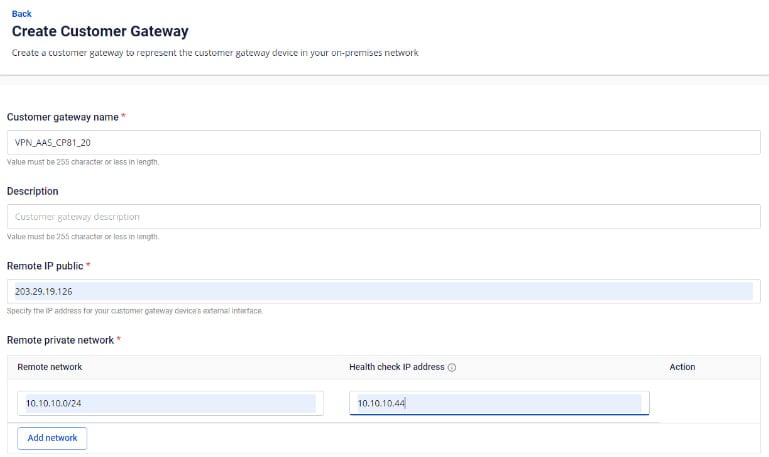 - Tạo VPN Connection:
Thông số của VPN Connection sẽ bao gồm 3 mục chính:
- Tạo VPN Connection:
Thông số của VPN Connection sẽ bao gồm 3 mục chính:
- General information (chứa các thông tin chung của kết nối VPN)
- Remote VPN Information (chứa các thông tin mã hóa và thông tin của quý khách hàng)
- Dead Peer Detection (số lần hệ thống tự động retry kết nối khi bị vấn đề)
Phần 1: General information 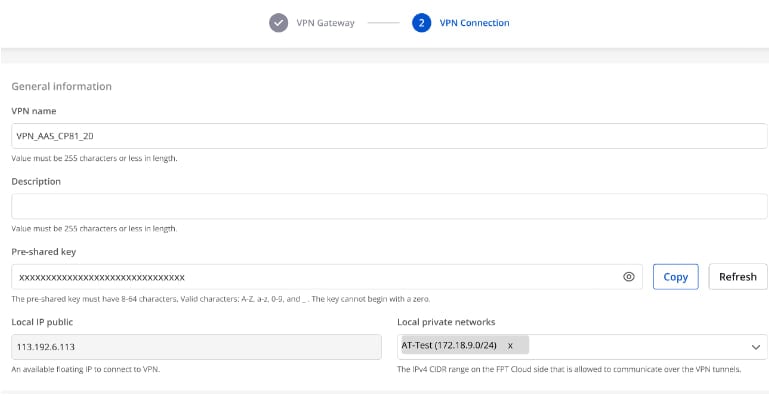 Phần 2: Remote VPN information
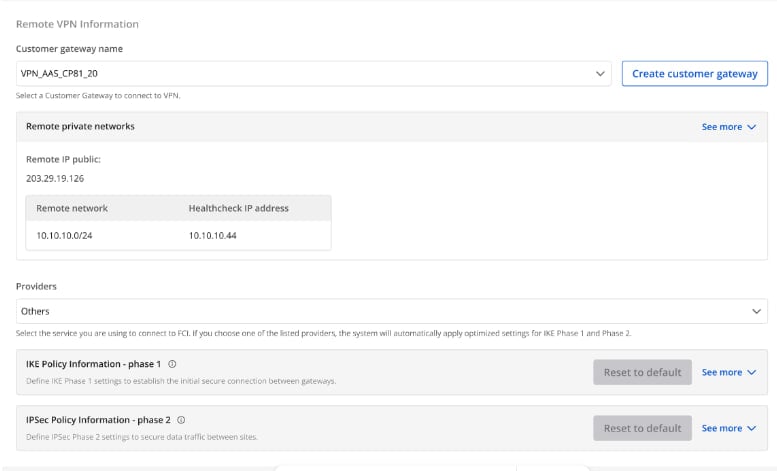 Quý khách hàng lựa chọn Providers = “others" sau đó làm theo các bước sau:
- Bước 1: Điền providers name = "StrongSwan"
- Bước 2: Điền thông tin cho IKE và IPSec cụ thể như sau:
Đối với IKE:
- Authorization algorithm: sha256
- Encryption algorithm: aes 256
- IKE version: ikev2
- DH group: group14
- Lifetime: 3600 seconds
- Phase1 negotiation mode: main
Đối với IPsec:
- Authorization algorithm: sha256
- Encryption algorithm: aes 256
- Encapsulation mode: tunnel
- Transform protocol: esp
- Perfect Forward Secrecy (PFS): group14
- Lifetime: 3600 seconds
Phần 3: Dead peer detection
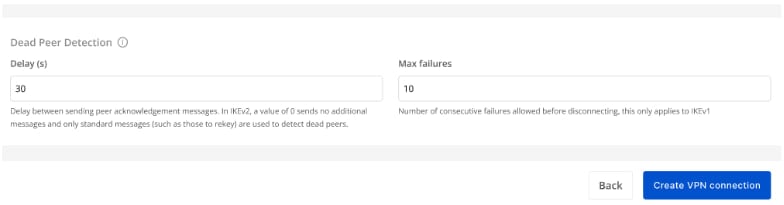 Sau khi điền đầy đủ thông tin, quý khách hàng vui lòng chọn “Create VPN Connection”
Bước 3: Cấu hình cho StrongSwan
- Đăng nhập ssh vào Ubuntu theo key đã tạo ở trên
- Đăng nhập ssh theo địa chỉ IP VM đã tạo với user là: "ubuntu"
Cấu hình StrongSwan VPN
Chạy các lệnh sau( thay các tham số vào):
CopyKiểm tra phiên bản strongSwan
swanctl -v
edit file sau /etc/ipsec.conf với mẫu:
Copyconfig setup
        charondebug="all"
        uniqueids=yes

conn myvpn
    type=tunnel
    auto=start
    keyexchange=ikev2
    ike=aes256-sha256-modp2048
    keyingtries=%forever
    lifetime=3600s
    dpddelay=30s
    dpdtimeout=120s
    dpdaction=restart
    esp=aes256-sha256-modp2048
    left=x.x.x.x    //IP của StrongSwan
    leftsubnet=x.x.x.x/24 //Subnet của StrongSwan
    leftauth=psk
    right=x.x.x.x    // IP của đối tác
    rightsubnet=x.x.x.x/24 //Subnet của đối tác
    rightauth=psk
    authby=secret
    auto=start
Edit file sau /etc/ipsec.secret với mẫu:
Copy# This file holds shared secrets or RSA private keys for authentication.
x.x.x.x x.x.x.x : PSK "xxxxxxxxxxxxxxxxxxxxxxxxxxxxxxxxxxx"   // Pre-shared key
# which knows the public part.
- Lưu ý:
- StrongSwan là một chương trình chạy nền trên Ubuntu, cần thêm enable multi-network trên CPU để đạt hiệu năng tốt nhất.
- StrongSwan là một chương trình chạy nền trên Ubuntu, cần thêm enable firewall và routing để có thể kết nối.
- Nếu lab trên Openstack của FCI thì phải add Static route trên router với Destination là IP của đối tác và nexthop là IP LAN của StrongSwan.