Setting Up Alerts Via The Cloud Guard Service Guide
Integrating the Cloud Guard service to configure alert thresholds for VPN allows users to set monitoring thresholds for the VPN service. When the system reaches or exceeds the configured threshold, Cloud Guard will send an alert notification to users through the configured channels (Email, Telegram, etc.).
To perform this function, please follow the steps below:
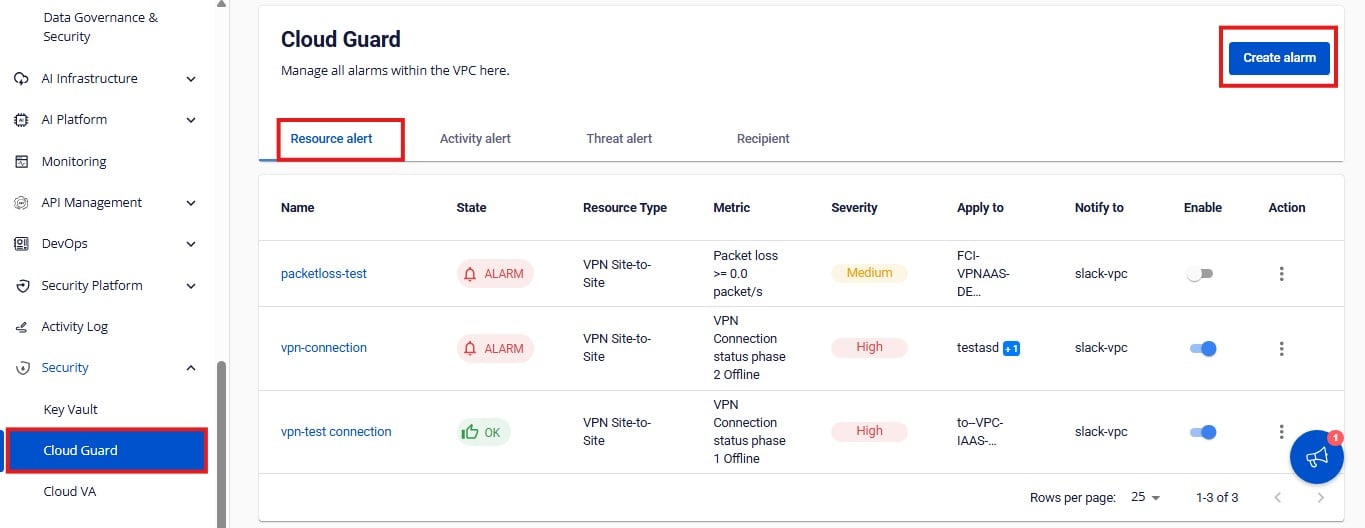
Step 1: From the menu, go to Security > Cloud Guard, open the Recipients tab, and select Create Recipient.
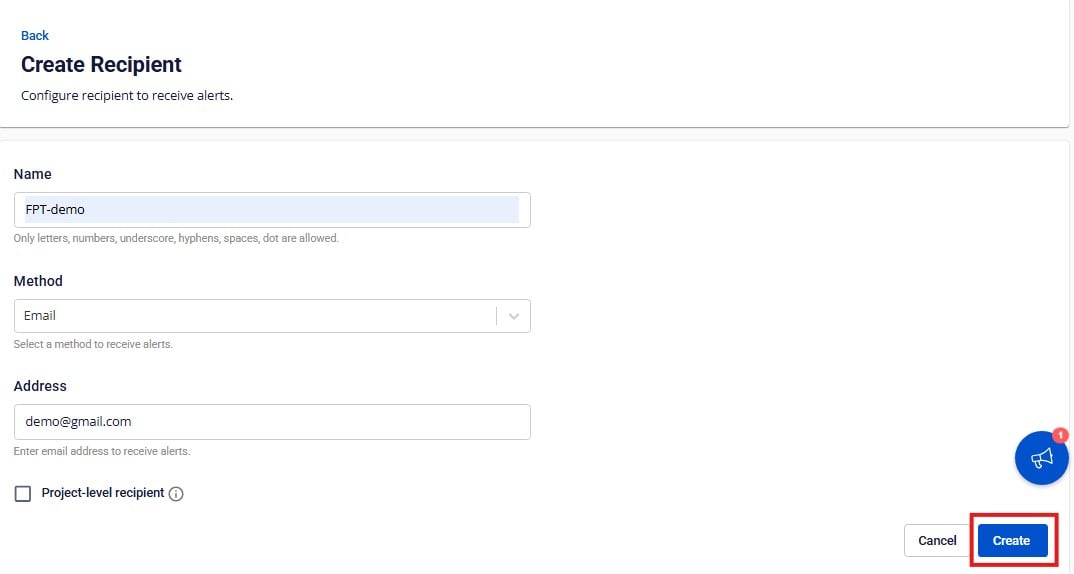
 Step 2: On the Create Recipient screen, fill in the following information:
- Name: Enter the name of recipient
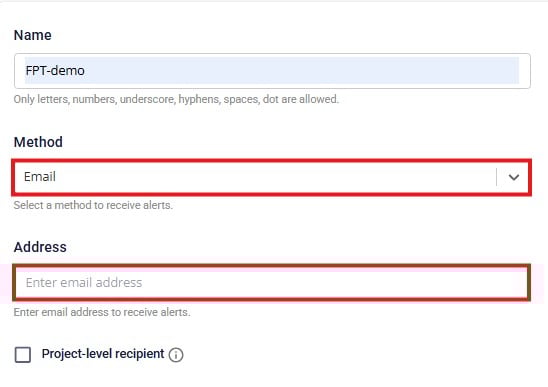
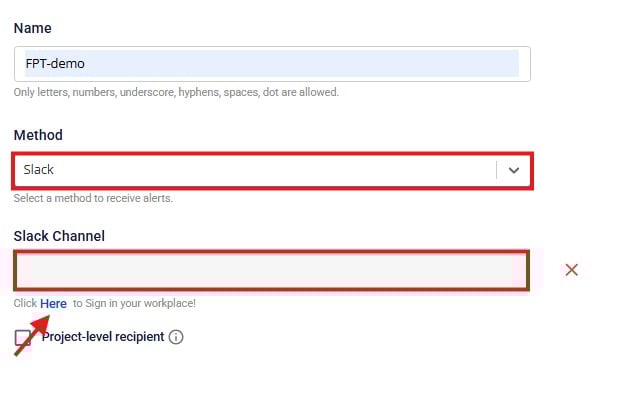
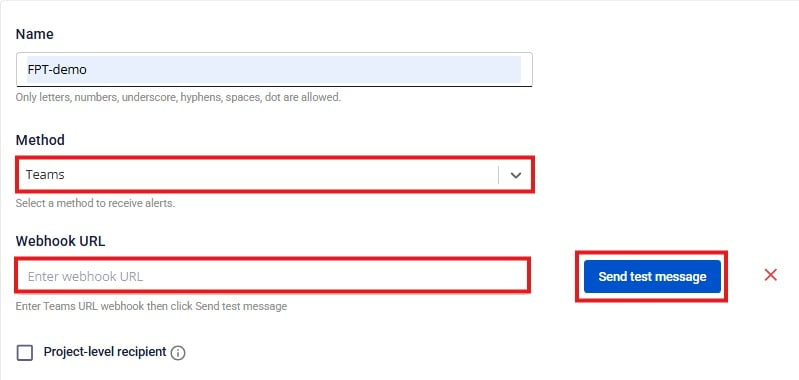
- Method: Select the alert delivery method. FPT Cloud Guard currently supports Email, Telegram, Slack, and Teams.
- Address: Specify the address that will receive alerts according to the selected Type. This is the destination where the system will send notifications when the monitored resource exceeds the configured threshold.
Receive alerts via Email: Enter the address of recipient.
 Receive alerts via Slack: Select the Slack Channel that will receive alerts. Log in to your Slack account, choose a Channel from the list, and the FPT Portal will automatically retrieve the Slack Channel ID.
 Receive alerts via Teams: Enter the URL of your Teams channel and click Send test message.
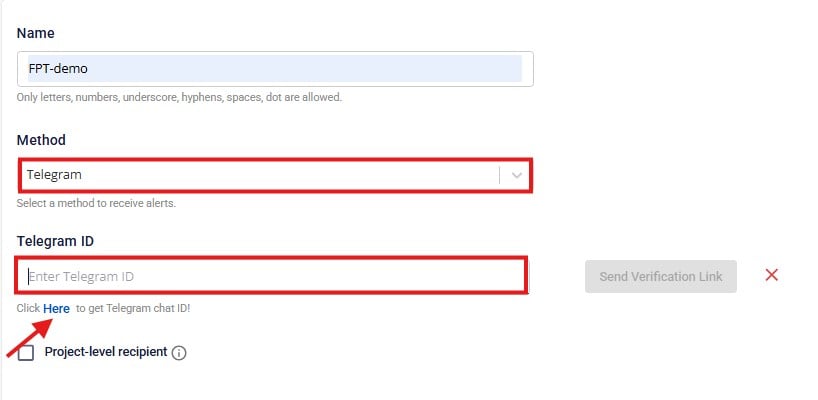
 Receive alerts via Telegram: Enter the Telegram ID of the alert recipient. If you don’t have a Telegram ID, follow the system’s instructions to obtain one.
  Step 4: After entering all required information, click Create to create a new Recipient.
  Next, to configure alerts for the VPN service, please follow these steps:
Step 1: From the top menu, select Cloud Guard > Resource alert > Create alarm.
Step 2: Enter the following details:
Next, to configure alerts for the VPN service, please follow these steps:
Step 1: From the top menu, select Cloud Guard > Resource alert > Create alarm.
Step 2: Enter the following details:
- Name: Display name of the alert.
- Type: Select VPN Site-to-Site as the type.
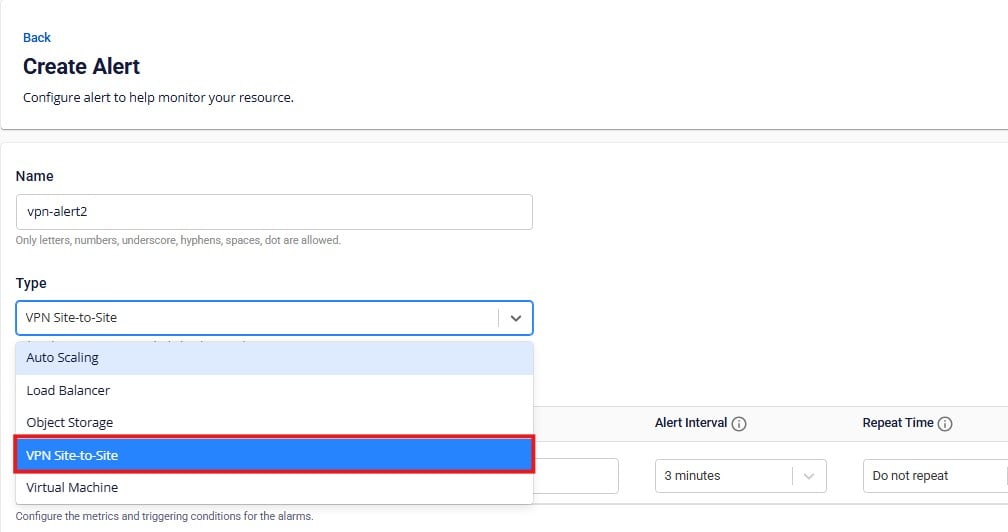
- Fill in the corresponding fields under Configure condition:
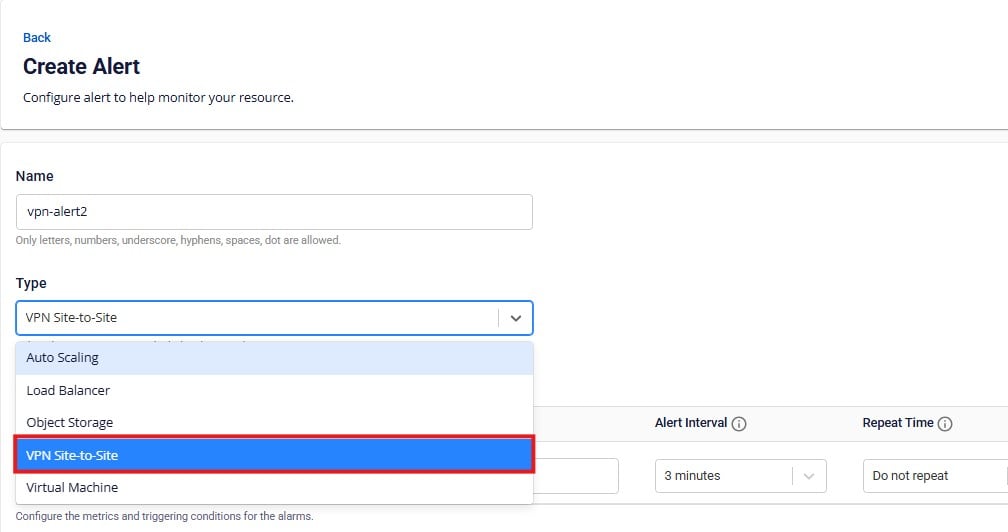
The configuration for alert conditions is as follows:
| No. | Field | Description |
|---|---|---|
| 1 | Metric type | Select the VPN Site-to-Site metric to set the alert. |
| 2 | Operator | Select the comparison condition. |
| 3 | Threshold | Set the threshold; when the system detects that the value exceeds the threshold, an alert will be triggered. |
| 4 | Alert interval | Select the calculation frequency for the system (minimum: 3 minutes). |
| 5 | Repeat time | Select how often the alert will repeat if the condition remains above the threshold. |
| FPT Cloud Guard supports alerts for the following VPN Site-to-Site metrics: | ||
| No. | Metric | Description |
| --- | --- | --- |
| 1 | CPU Usage (%) | Percentage of CPU usage on the VPN Gateway device. |
| 2 | Packet loss (packet/s) | Number of packets lost during data transmission between the two VPN endpoints (per second). |
| 3 | RAM Usage (%) | Percentage of RAM used by the VPN Gateway. |
| 4 | VPN Connection Status phase 1 Offline | Offline status when establishing Phase 1 (IKE – Internet Key Exchange) of the VPN connection. |
| 5 | VPN Connection Status phase 2 Offline | Offline status when establishing Phase 2 (IPsec Configuration) of the VPN connection. |
| 6 | VPN Gateway Status Offline | Offline status of the VPN Gateway. |
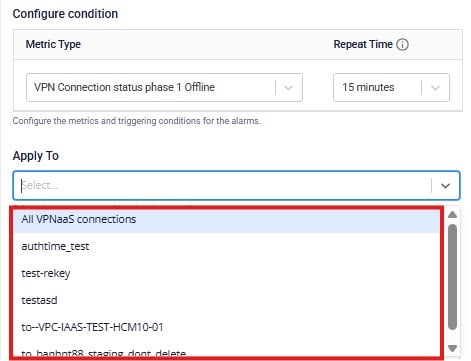
| - Apply to: | ||
| -For the three metrics CPU Usage (%), Packet loss (packet/s), and RAM Usage (%), apply them directly to your VPN Gateway. | ||
| -For the metrics VPN Connection Status phase 1 Offline, VPN Connection Status phase 2 Offline, and VPN Gateway Status Offline, select the VPN Connections from the list. | ||
 | ||
| - Severity : Select the severity level of the alert. | ||
| - Notify to: Select the recipient of the alert. | ||
| Step 3: After filling in all the information, click Create. | ||
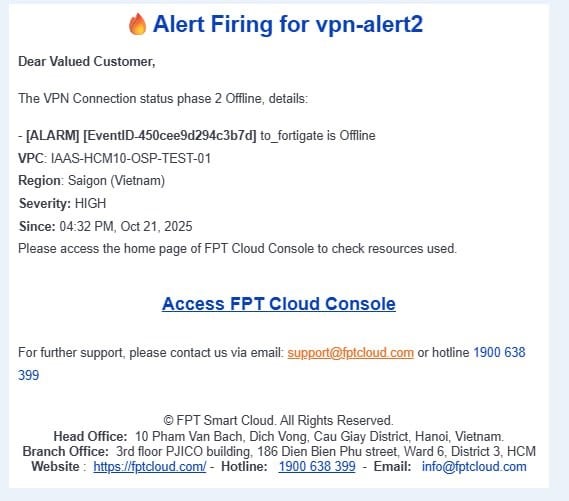
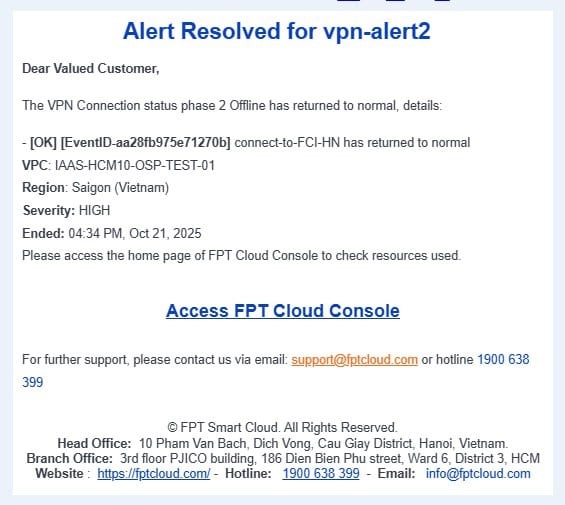
| Once successfully created, the alert will appear in the list. When the monitored condition exceeds or returns to the safe threshold, the system will automatically send a notification to the recipient through the configured method — for example, via Email as shown below. | ||
 | ||
 |