Deploy Application With Gpu On K8S
Kubernetes manages and utilizes GPU resources similar to how it manages CPU resources. Depending on the GPU specifications of the Worker Group, you need to configure GPU resources for applications running on Kubernetes accordingly. Note:
- You can define GPU limits without defining GPU requests since Kubernetes default uses limits value as requests.
- You can define both GPU limits and requests but these values must be equal.
- You can not define GPU requests without defining limits.
You can view the GPU specs on Kubernetes by running this command:
Copykubectl get node ||worker-node|| -o json | jq ‘.items[].metadata.labels‘
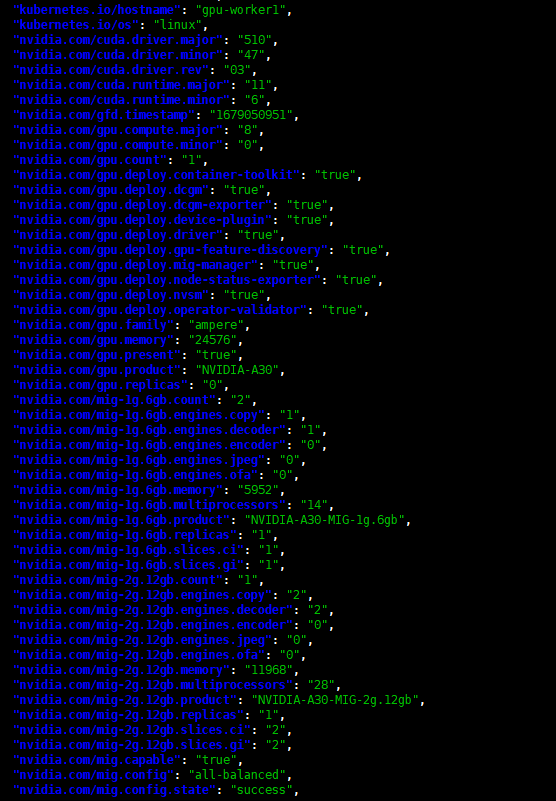 For example, the image above shows a worker using the NVIDIA A30 GPU, with the configuration strategy set to all-balanced , and the status is success.
You can view the GPU Instance specifications by running this command (ssh to the worker node, then execute the command):
For example, the image above shows a worker using the NVIDIA A30 GPU, with the configuration strategy set to all-balanced , and the status is success.
You can view the GPU Instance specifications by running this command (ssh to the worker node, then execute the command):
Copynvidia-smi mig -lgi
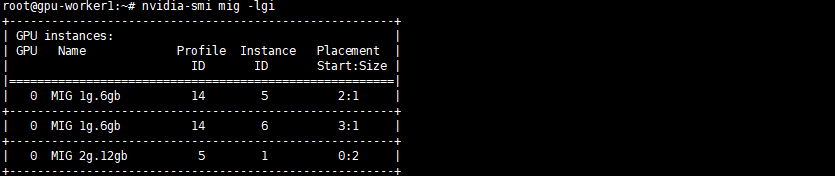
Example of deploying an application with GPU workload:
- With the strategy set to single , the GPU resources are declared as:
Copynvidia.com/gpu: ||gpu-count||
Example:
Copynvidia.com/gpu: 1
Note : With strategy: single , the GPU is divided equally into instances. Example deployment withstrategy: single GPU usage:
CopyapiVersion: apps/v1
kind: Deployment
metadata:
  name: example-gpu-app
spec:
  replicas: 1
  selector:
    matchLabels:
      component: gpu-app
  template:
    metadata:
      labels:
        component: gpu-app
    spec:
      containers:
        – name: gpu-container
          securityContext:
            capabilities:
              add:
                – SYS_ADMIN
          resources:
            limits:
              nvidia.com/gpu: 1
          image: nvidia/samples:dcgmproftester-2.0.10-cuda11.0-ubuntu18.04
          command: [“/bin/sh”, “-c”]
          args:
            – while true; do /usr/bin/dcgmproftester11 –no-dcgm-validation -t 1004 -d 300; sleep 30; done
- With the strategy set to mixed , the GPU resources are declared as:
Copynvidia.com/||mig-profile||: ||gpu-count||
Example:
Copynvidia.com/mig-1g.6gb: 2
Note : With strategy: mixed , the GPU is divided into 2 instance types, so we need to explicitly define the instance type when declaring the resource. Example deployment withstrategy: mixed GPU usage:
CopyapiVersion: apps/v1
kind: Deployment
metadata:
  name: example-gpu-app
spec:
  replicas: 1
  selector:
    matchLabels:
      component: gpu-app
  template:
    metadata:
      labels:
        component: gpu-app
    spec:
      containers:
        – name: gpu-container
          securityContext:
            capabilities:
              add:
                – SYS_ADMIN
          resources:
            limits:
              nvidia.com/mig-1g.6gb: 1
          image: nvidia/samples:dcgmproftester-2.0.10-cuda11.0-ubuntu18.04
          command: [“/bin/sh”, “-c”]
          args:
            – while true; do /usr/bin/dcgmproftester11 –no-dcgm-validation -t 1004 -d 300; sleep 30; done
- With the strategy set to none , the GPU resources are declared as:
Copynvidia.com/gpu: 1
Note : With strategy: none , the GPU is fully allocated to the application pod. Example deployment withstrategy: none GPU usage:
CopyapiVersion: apps/v1
kind: Deployment
metadata:
  name: example-gpu-app
spec:
  replicas: 1
  selector:
    matchLabels:
      component: gpu-app
  template:
    metadata:
      labels:
        component: gpu-app
    spec:
      containers:
        – name: gpu-container
          securityContext:
            capabilities:
              add:
                – SYS_ADMIN
          resources:
            limits:
              nvidia.com/gpu: 1
          image: nvidia/samples:dcgmproftester-2.0.10-cuda11.0-ubuntu18.04
          command: [“/bin/sh”, “-c”]
          args:
            – while true; do /usr/bin/dcgmproftester11 –no-dcgm-validation -t 1004 -d 300; sleep 30; done