Post Incident Activity
You can add brief notes during the incident handling process. Doing so would help you in term of incident management activities, prevention or mitigation of similar future incidents.
A. Create an Activity
Step 1 : From the sidebar menu, choose Apps , then click FMON - Incident
Step 2 : Click Home to view a list of incidents
Step 3 : Click on the title of the incident to view its detail
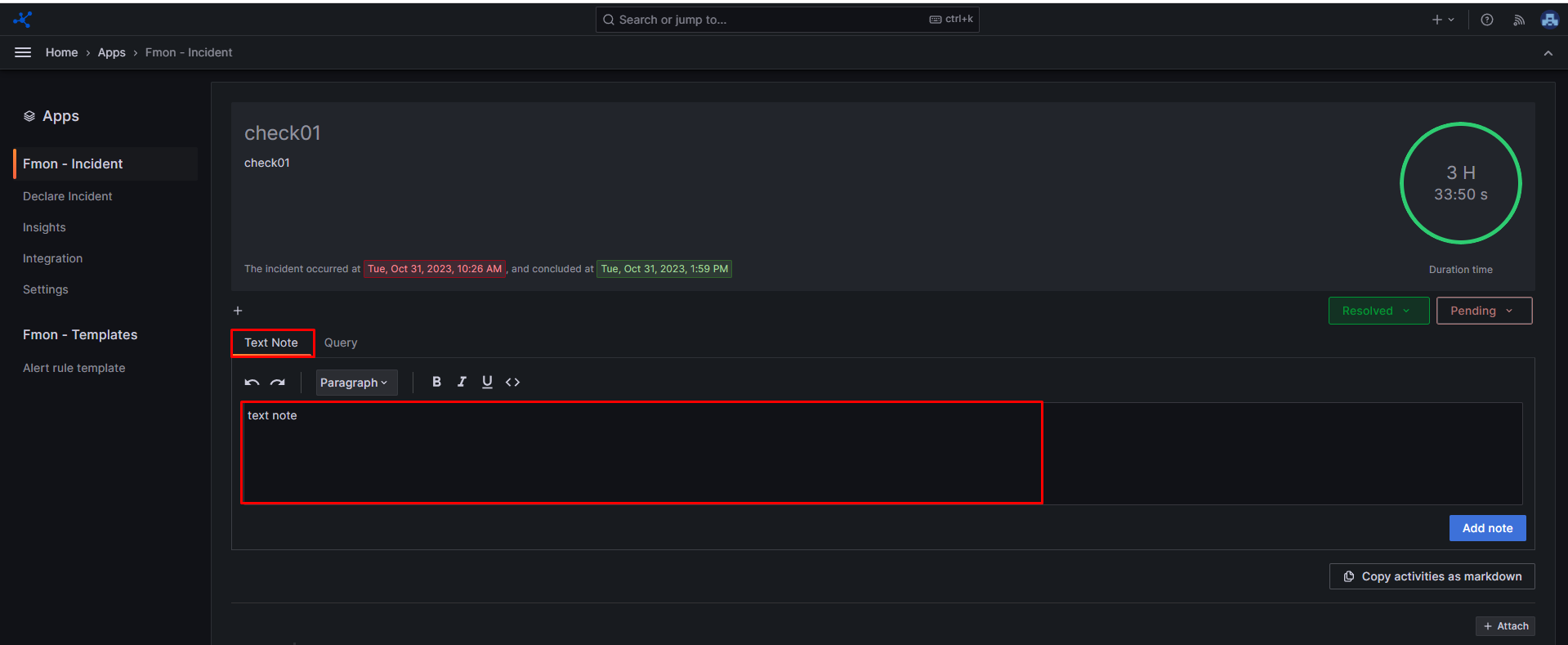
Step 4 : Provide your notes in the text box.
Step 5 : Click Add note.
B. Update an Activity
Step 1 : Click on the title of the incident to view its detail
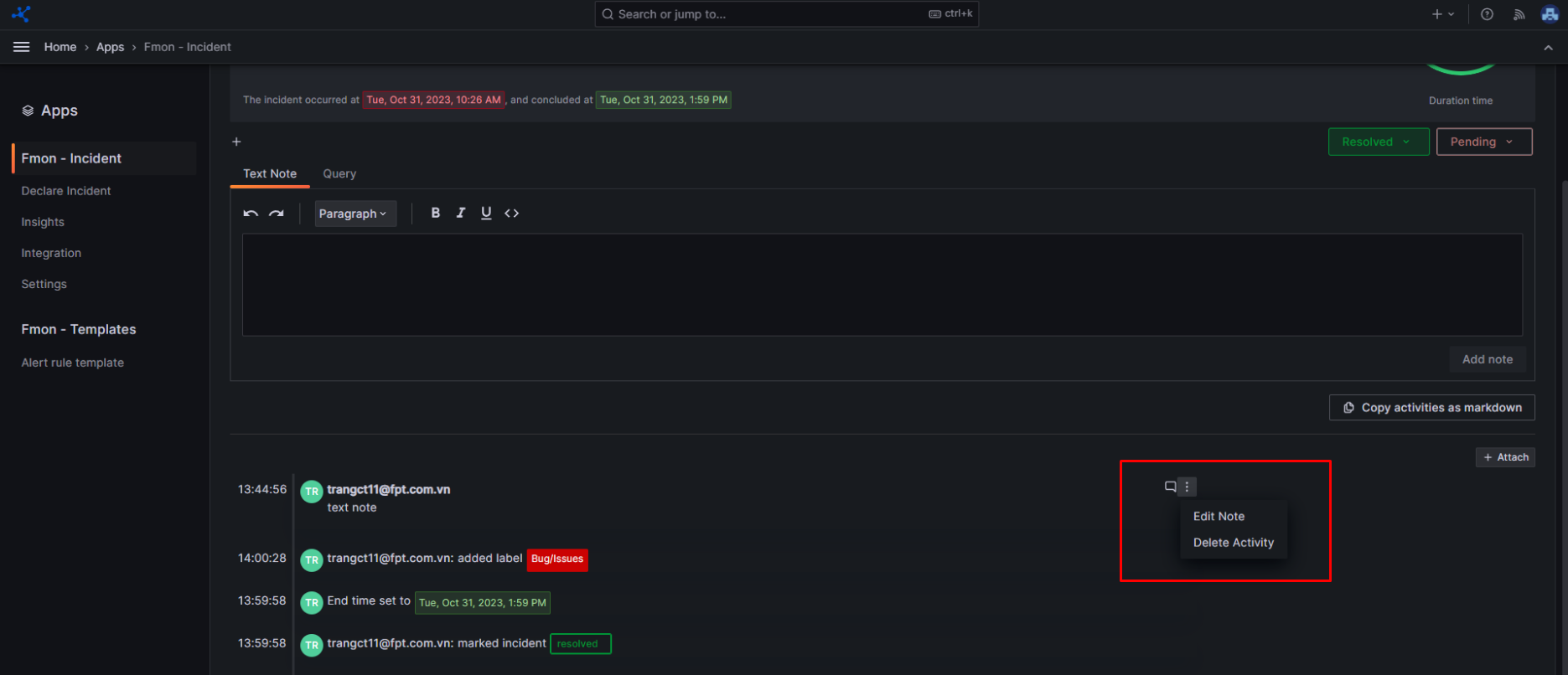
Step 2 : Hover to the activity that you want to edit, then click on the three dot icon in the upper right corner and click the Edit Note option.
 Step 3 : Update the Activity information
Step 4 : Click Save.
Step 3 : Update the Activity information
Step 4 : Click Save.
C. Delete an Activity
Step 1 : Click on the title of the incident to view its detail
Step 2 : Hover to the activity that you want to delete, then click on the three dot icon in the upper right corner and click the Delete Activity option.
D. Commenting on an Activity
Step 1 : Click on the title of the incident to view its detail
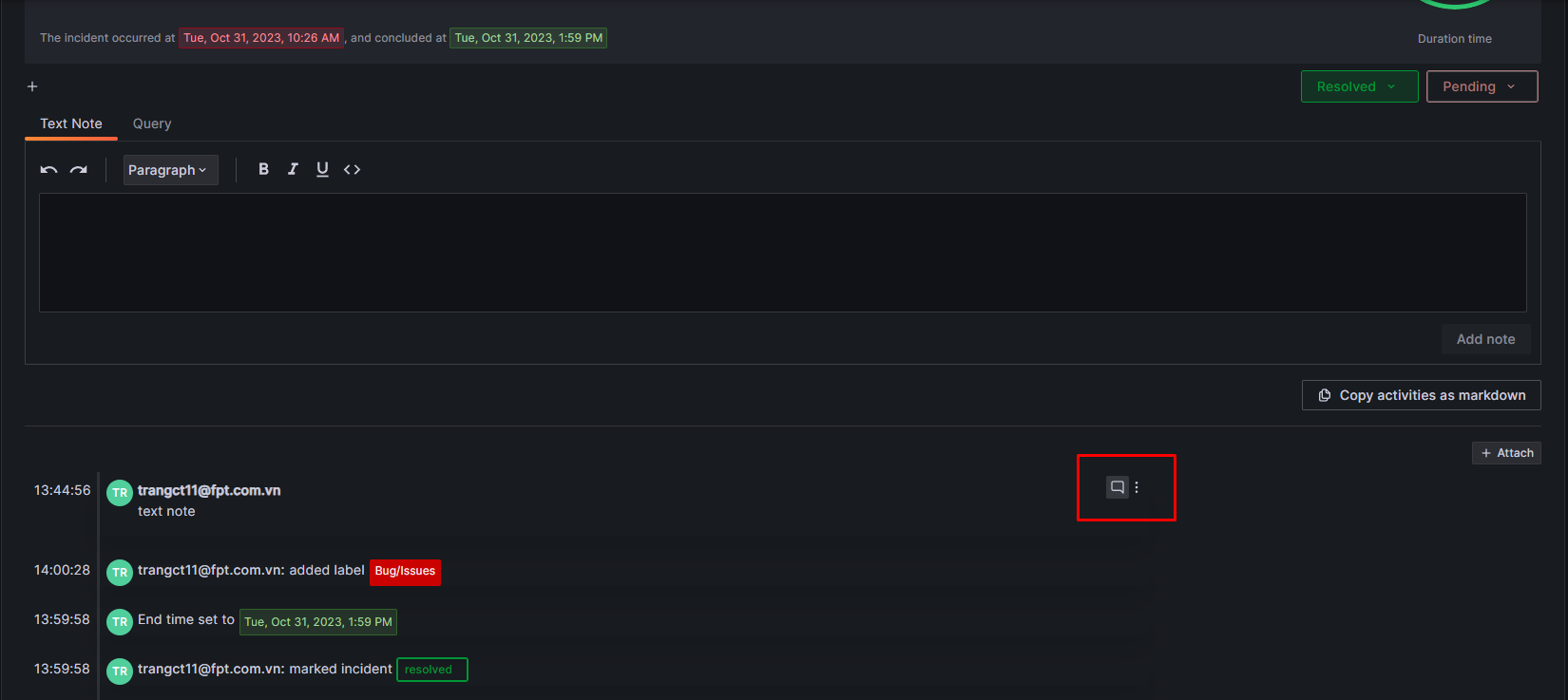
Step 2 : Hover to the activity you want to add a comment, then click on the Comment icon in the upper right corner
 Step 3 : Enter your text into the textbox.
Step 4 : Click Save.
Step 3 : Enter your text into the textbox.
Step 4 : Click Save.