Manage Security Rule Set
In addition to the default Rule Set provided by FPT Cloud WAF, users can create a custom Rule Set with custom Rules to suit the specific needs of the protected endpoint.
To add a new custom Rule Set, administrators can follow these steps:
Step 1 : Select Security Rule Sets in the menu to open the Security Rule Sets > Create Security Rule Set.
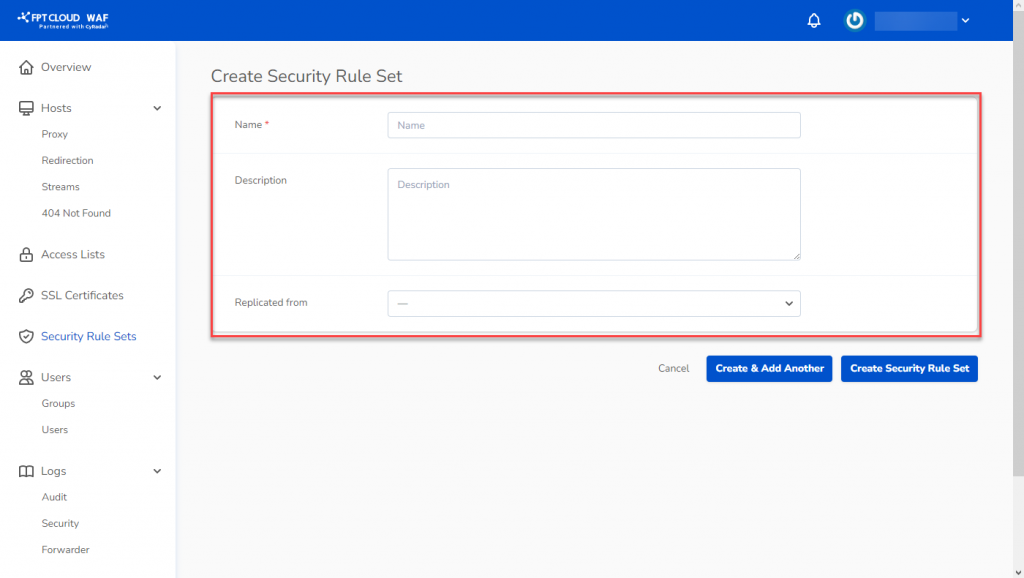
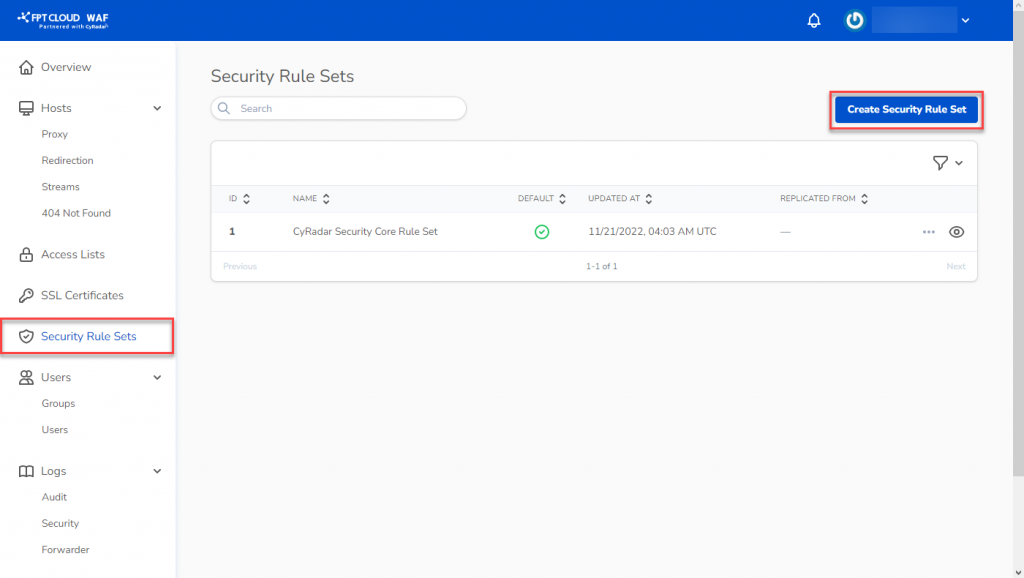 Step 2: Choose Create Security Rule Set to open the new Rule Set setup screen and fill in the required information:
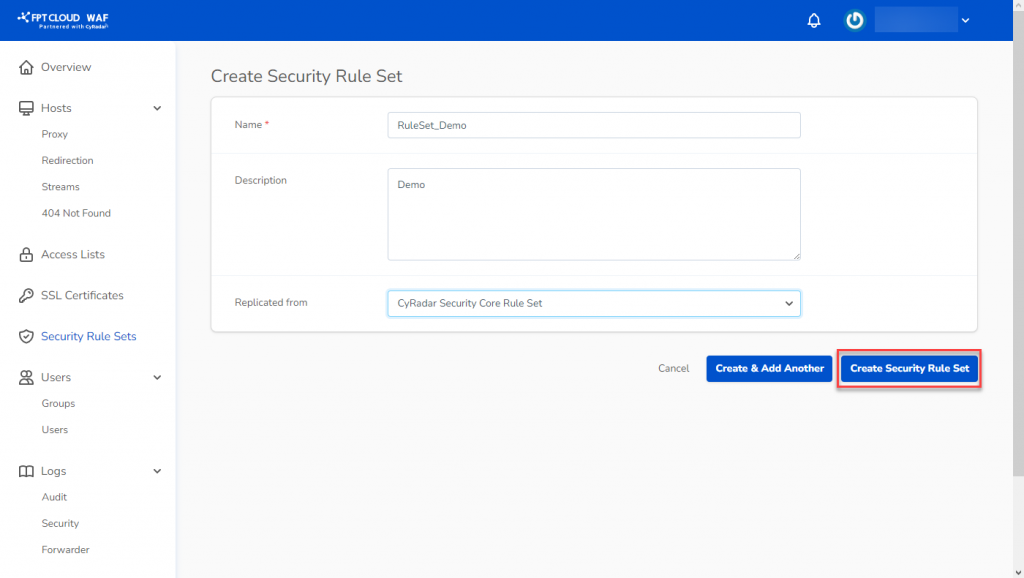
- Name: Name of the new Rule Set.
- Description (optional): Description
- Replicated From: Choose the Rule Set you want to clone and modify.
 Step 3: Select Create Security Rule Set to save and complete the creation of the Rule Set.
Create Custom Rules in Rule Sets
After creating a Rule Set, you can add custom Rules as needed.
To add a new custom Rule, follow these steps:
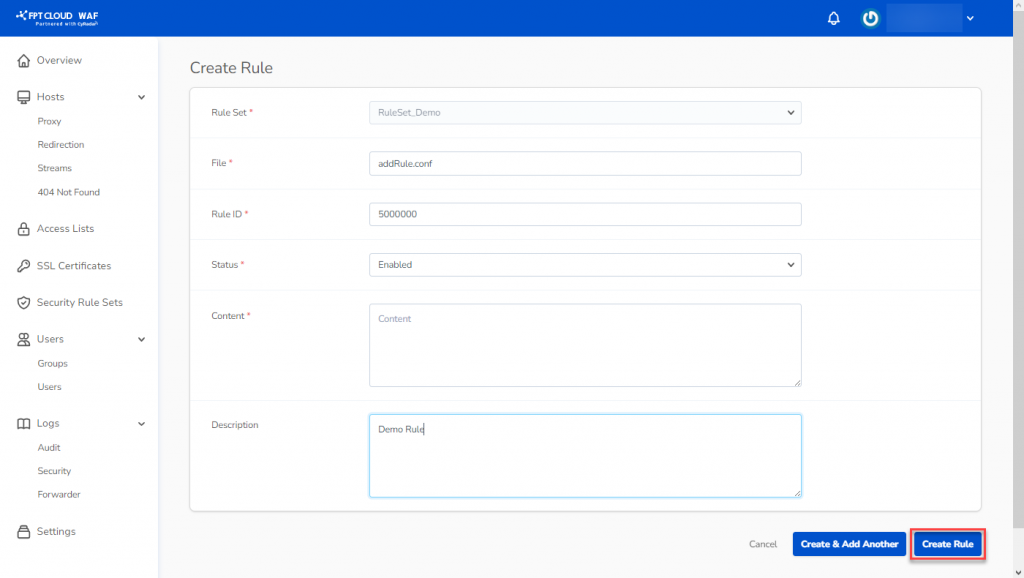
Step 1: In the Rule Sets Detail where you want to add a Rule, choose Create Rule.
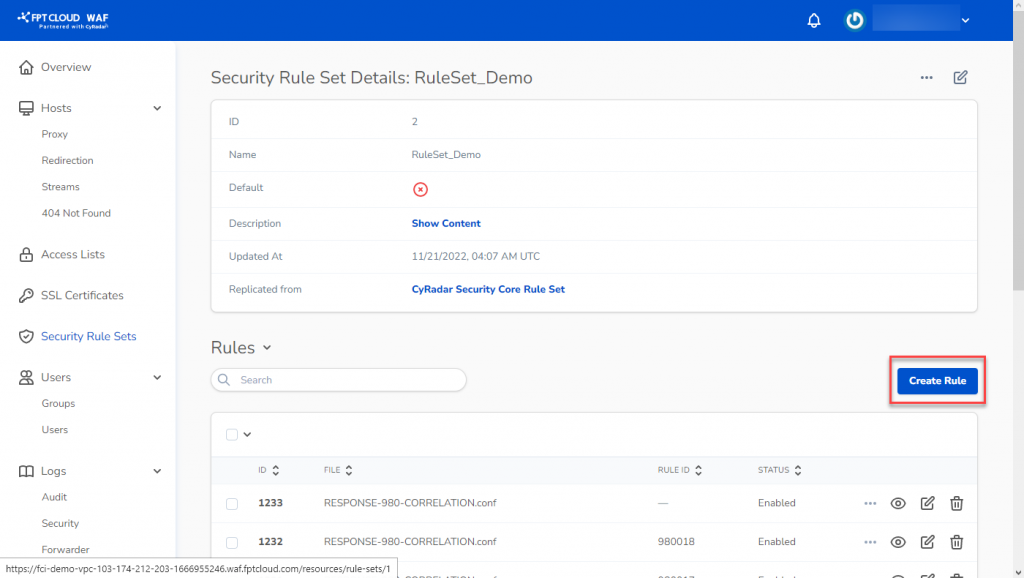 Step 2: Enter the necessary information for the Rule:
- File: Name the rule.
- Rule ID: Rule ID (ranging from 5,000,000 to 5,999,999).
- Status: Operational status (Enabled/Disabled).
- Content: Rule content.
- Description: Description for the rule.
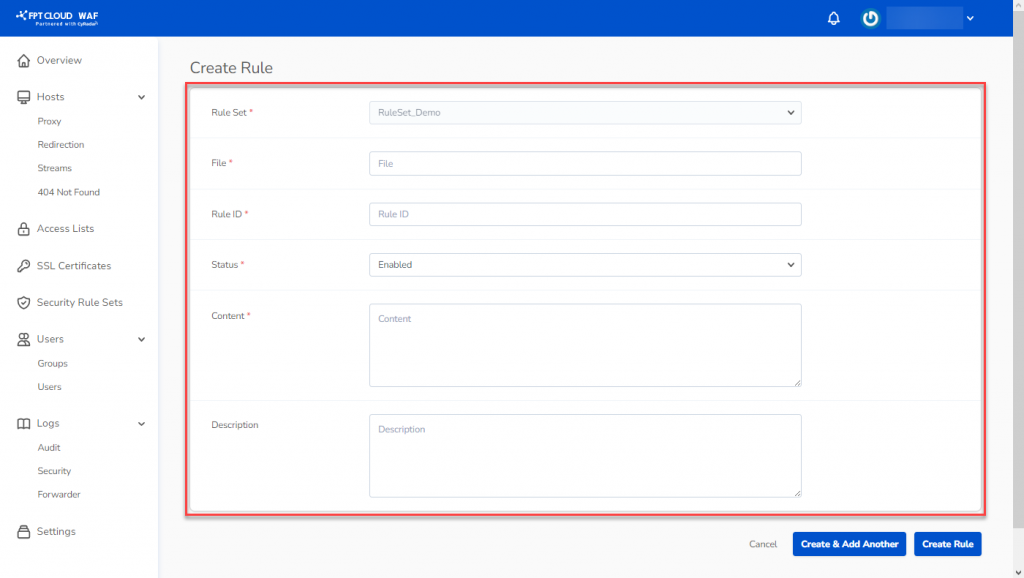 Step 3: Select Creat Rule to create the new Rule.