Manage Ssl Certificate
SSL certificates are a form of encryption key that allows your website to be encrypted for end users.
To configure/add a new SSL certificate, follow these steps:
Step 1: Select SSL Certificates in the menu to open the SSL Certificates management screen.
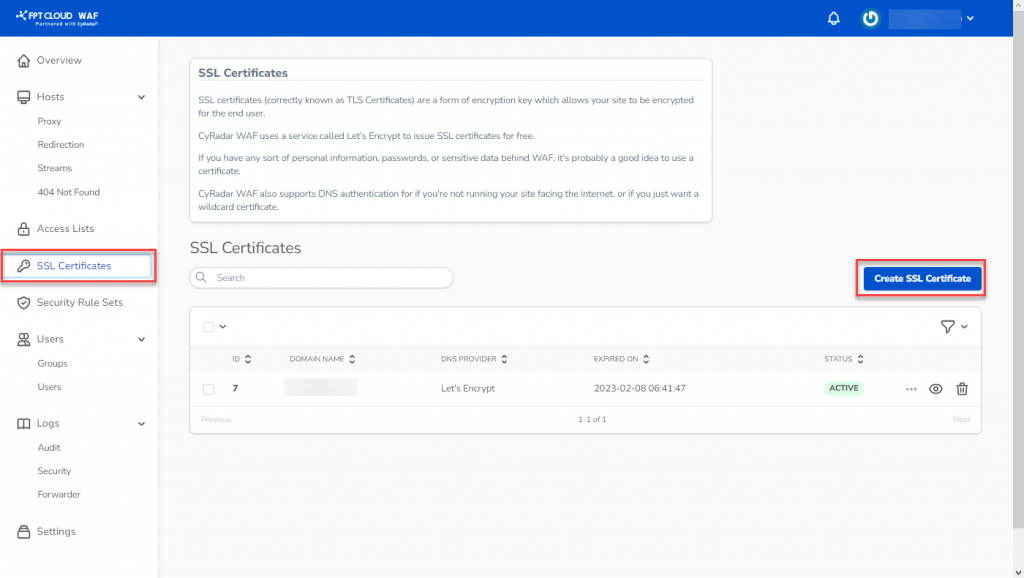 Step 2: Choose Create SSL Certificates to open the new certificate setup screen. Here, there are two installation modes:
- Let’s Encrypt is an open, free, and automatic certificate authority (CA) available on FPT Cloud WAF.
- Custom : User can configure certificates as needed. Certificates from third parties.
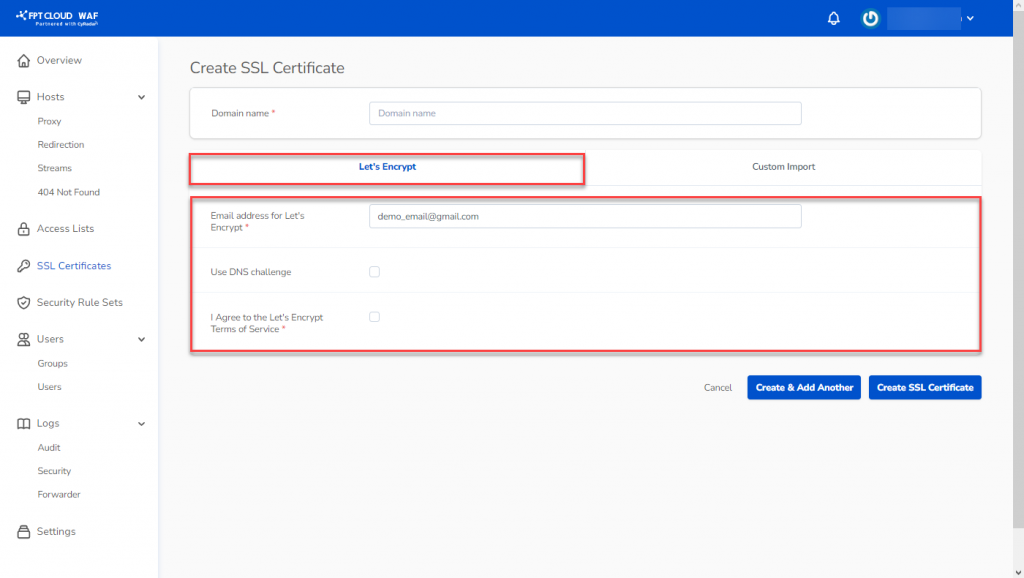
If you choose Let’s Encrypt, configure as follows:
- Domain Name: Enter the domain/website name configured for SSL
- Email Address for Let’s Encrypt: Provide the email for Let’s Encrypt.
- Use a DNS Challenge – Extended option: Depending on your needs, you may choose to add the "Use a DNS Challenge" option.
- I Agree to the Let’s Encrypt Terms of Service : Check this box to agree to the terms of service for Let’s Encrypt.
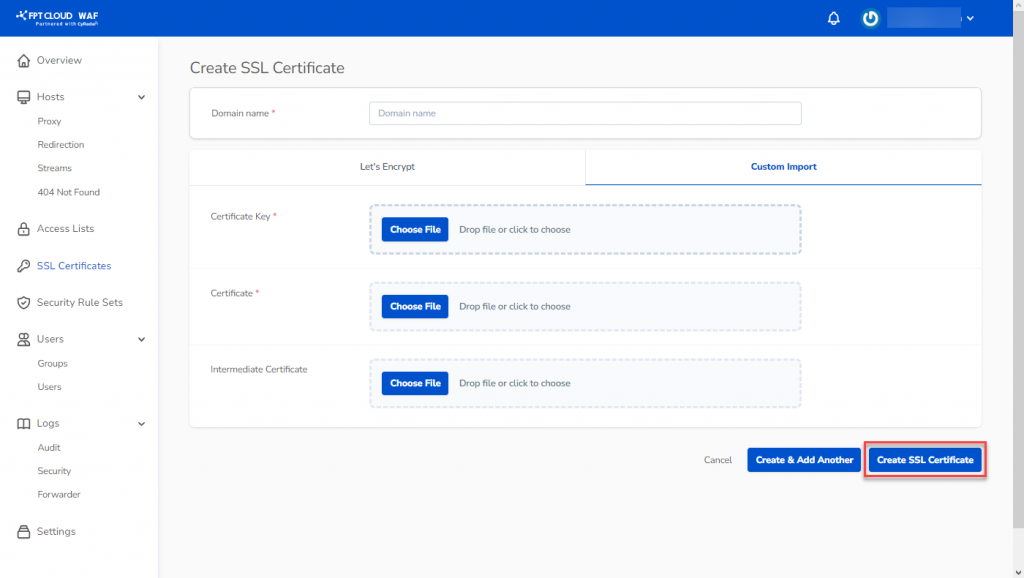
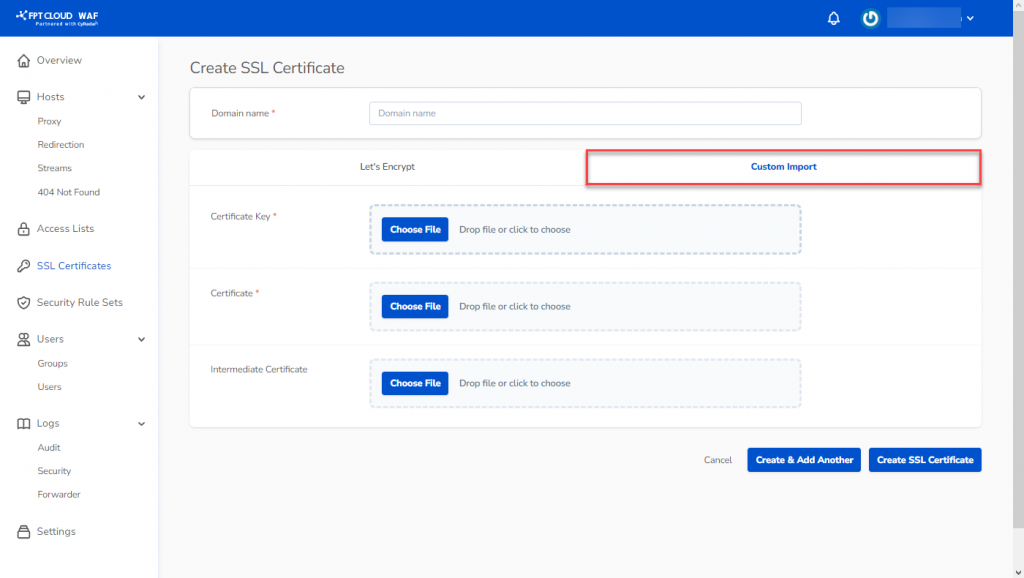
 If you choose the Custom Import mode, you need to enter the certificate information from the third party and take responsibility for managing this information. To import a Custom Certificate, enter the following details:
- Certificate Key : Upload the Certificate Key file
- Certificate : Upload the Certificate file.
- Intermediate Certificate: Upload the Intermediate Certificate file.
 Step 3: Select Create SSL Certificate to save and complete the SSL Certificate configuration/addition.