Managing Tags For Floating Ip
1. Assigning Tags While Allocating Floating IP
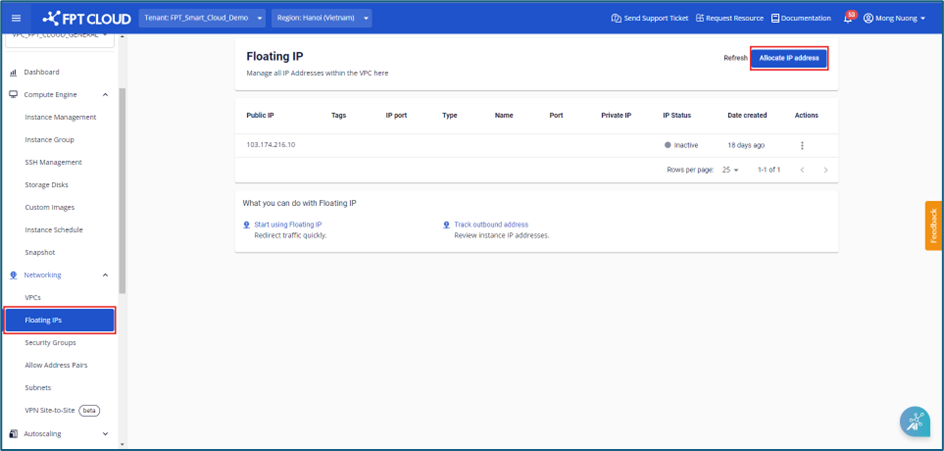
Step 1 : In the menu, selectFloating IP , then click Allocate floating IP.
 Step 2 : In the Allocate floating IP dialog box, users can select tags in the Add tag (optional) field to assign them to the floating IP.
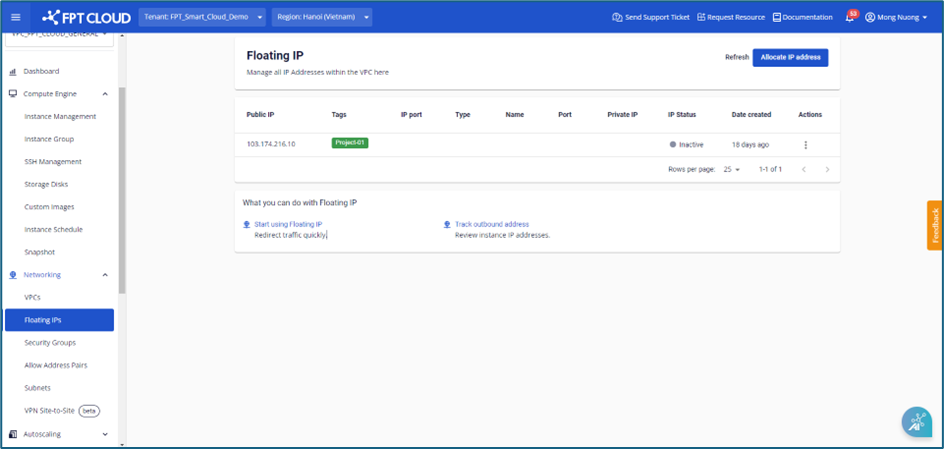
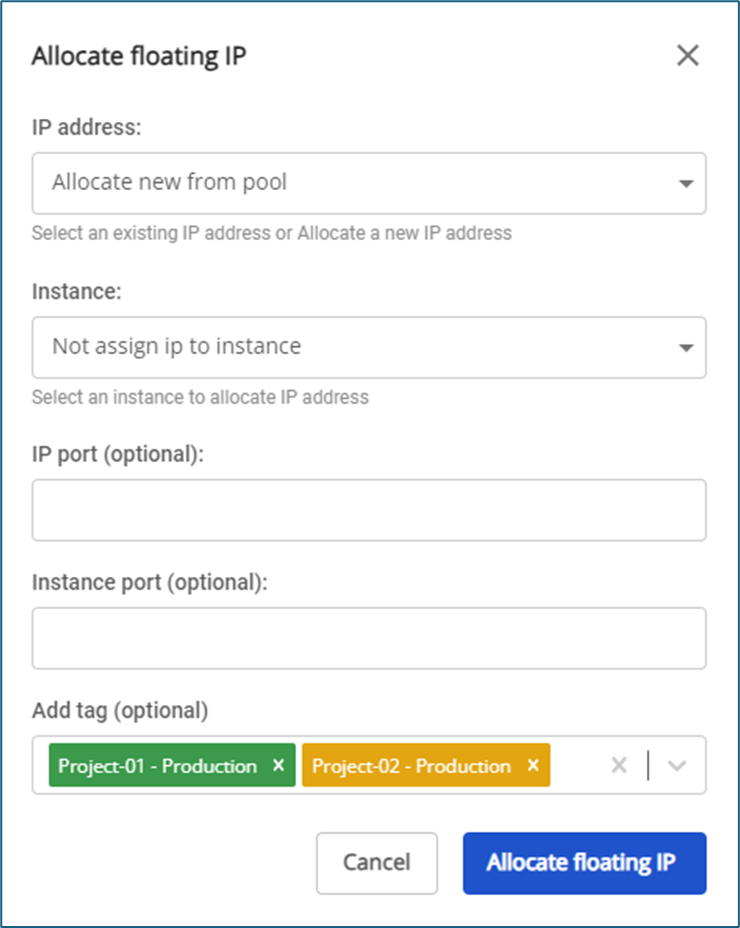 Step 3 : Users fill in other details and click Allocate floating IP to create the IP address. The assigned tags will be displayed in the Tags field on the Floating IP screen.
2. Managing Tags for Floating IP
Step 1 : In the menu, select Floating IP , then click Actions > Manage tags.
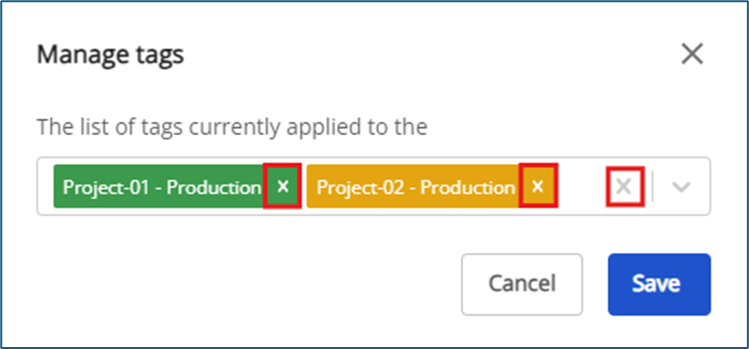
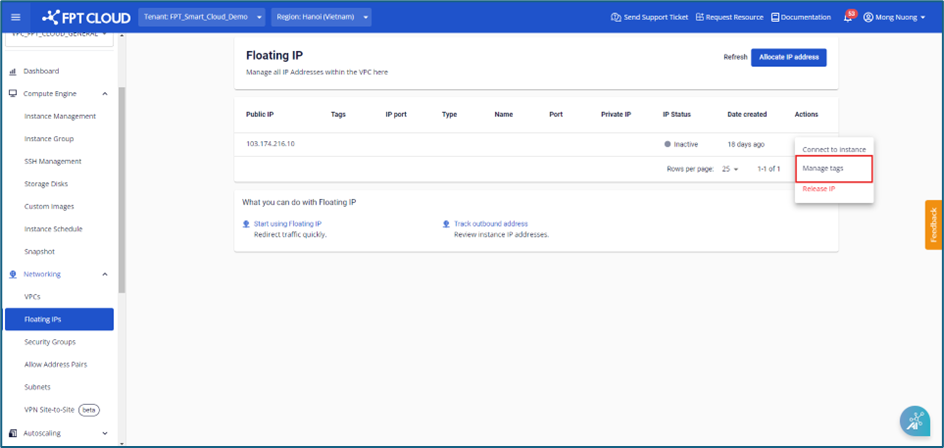 Step 2 : A dialog box appears, allowing users to select tags to assign to the floating IP.
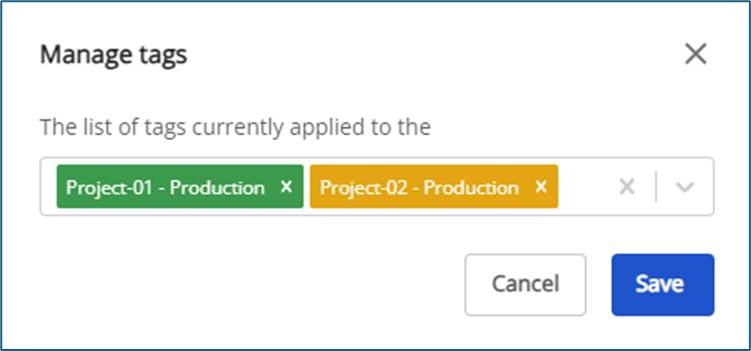 Step 3 : If users want to remove a tag from the floating IP, they can:
- Click the “x” next to the tag name to remove it individually.
- Click the “x” at the end of the list box to remove all tags at once.
- Click Save to confirm changes.
Note: Deleting a floating IP will automatically remove all associated tags, and the tag list will be updated in the Tagging screen.