View Cost Information
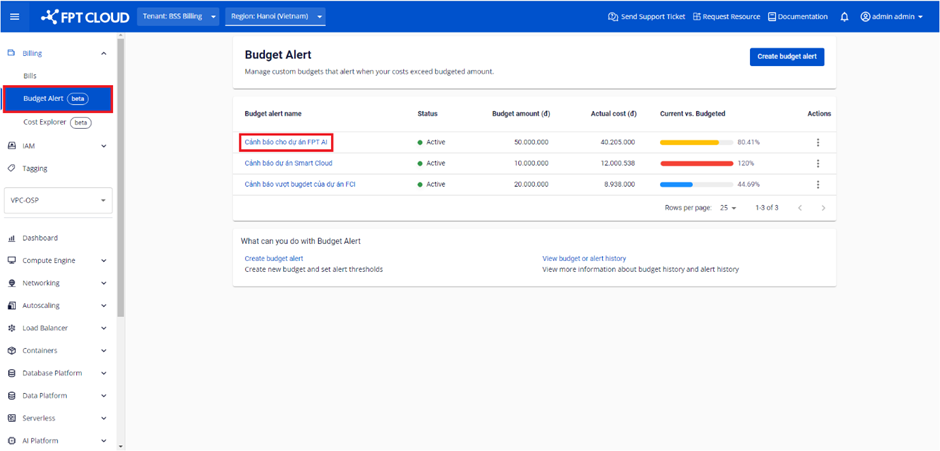
Step 1 : In the menu, select Billing > Select Budget Alert. The system displays the Budget Alert list you've created> Select Budget Alert Name.
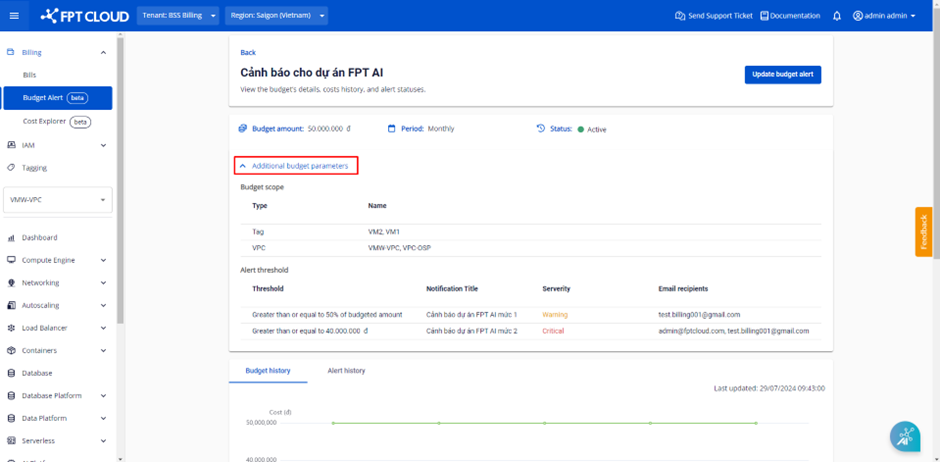
 Step 2 : On the View budget details screen, select Additional budget parameters to review the budget and alert threshold information.
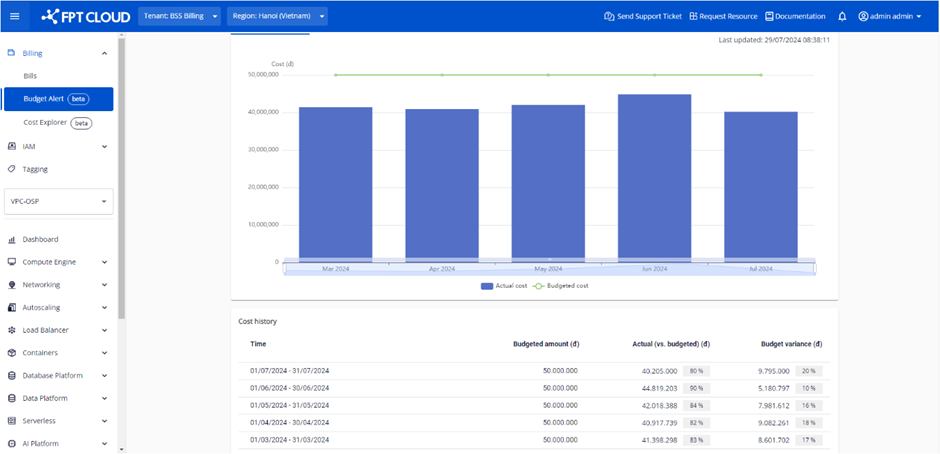
 Step 3 : In the Budget history section, users can scroll to zoom in/zoom out the comparison chart between Actual cost and Budget amount.
- If the Budget Period is Monthly, the chart will show the correlation between the Actual cost and the Budget amount for the last 6 months.
- If the Budget Period is Daily, the graph will show the correlation between the actual cost and the Budget amount for the last 30 days.
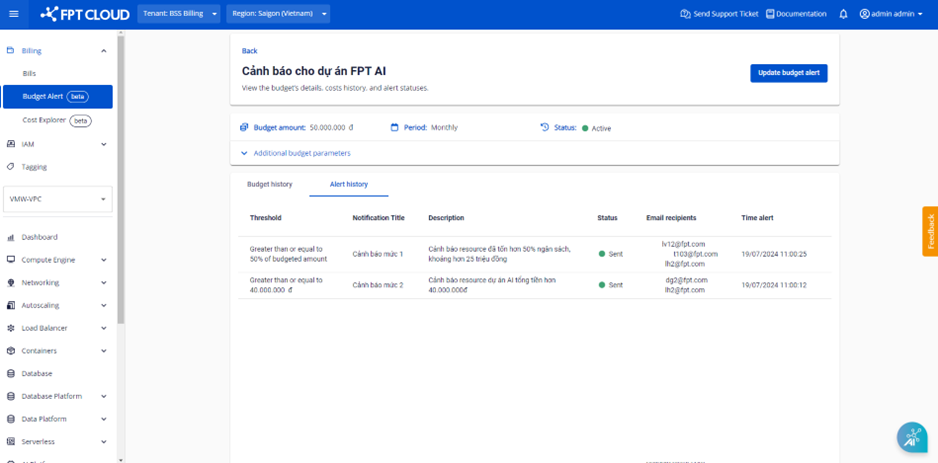
 Step 4 : In the Alert history section, users can view the alert history of that Budget Alert.
- If the Budget Period is Monthly, the chart will show the correlation between the Actual cost and the Budget amount for the last 6 months.
- If the Budget Period is Daily, the graph will show the correlation between the actual cost and the Budget amount for the last 30 days.