Initiating A Budget Alert
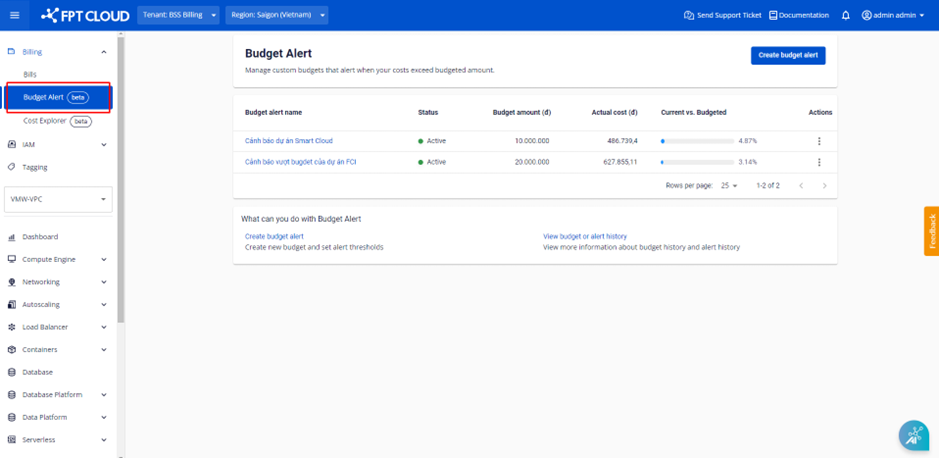
Step 1 : In the menu, select Billing > Select Budget Alert. The system displays the created budget alert list.
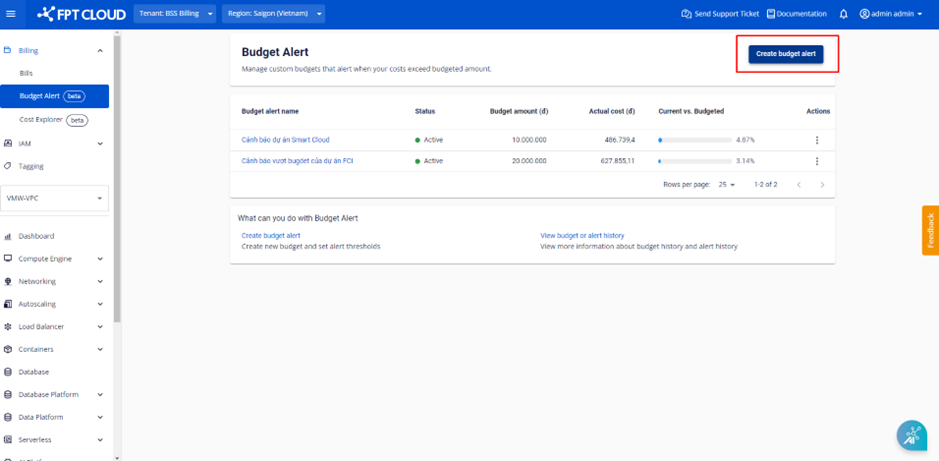
 Step 2 : Select the Create Budget Alert button, the system will go to the fill in screen to create a budget alert.
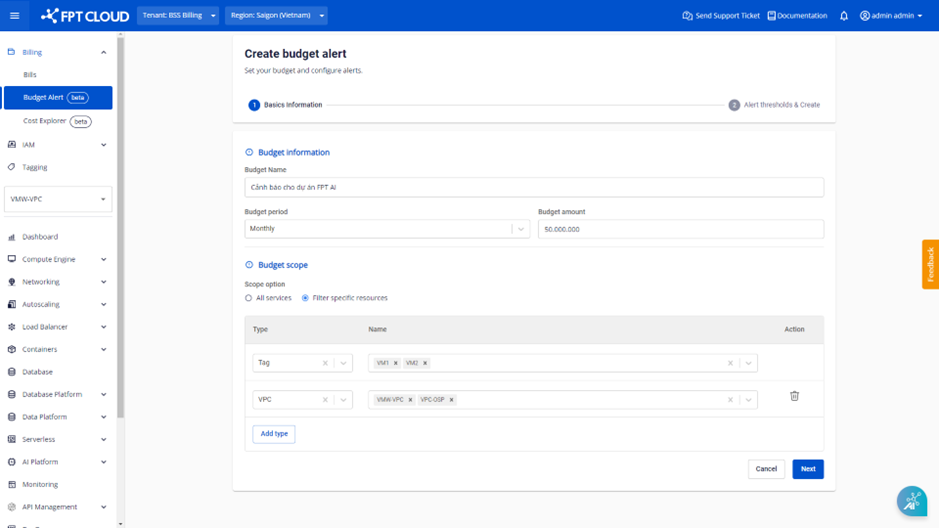
 Step 3 : Select the Create Budget Alert button, the system will take you to the Basics Information filling screen.
- Budget Name (required): Users enter the name of the budget alert, up to 50 characters, including uppercase characters, numbers, dashes, and underscores.
- Budget period (required):
- Select Monthly if you want to charge and alert by month (starting from 00:00 on the 1st of every month and ending at 23:59 on the last day of the month)
- Select Daily if you want to charge and alert daily (starts at 00:00 daily and ends at 23:59 daily)
- Budget amount (required): The total budget amount for 1 day or 1 month (default currency is Vietnamese dong)
- Budget scope (required):
- Select "All services" if you want to calculate the budget alert threshold according to the actual cost of all services and resources in the current ORG tenant.
- Select "Filter specific resources" if you want to calculate the budget alert threshold for some services by VPC or by tag.
- Note: You can select 1 or more VPCs/Tags. The actual cost will be calculated from the usage of the service/resource that is concurrently located in all VPCs and the selected Tag. Services/resources that are only located in 1 VPC or 1 Tag and not in other VPCs or Tags will not be charged.
 Step 4 : Select the Next button, the system will go to the Alert thresholds & Create information filling screen.
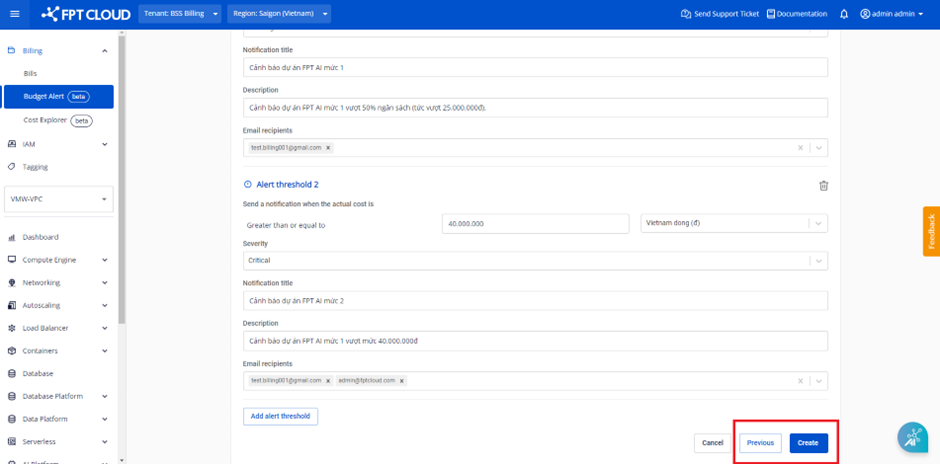
- Threshold number (required): The user enters the warning threshold number.
- Threshold unit (required): The user selects the unit of the alert threshold
- If you select "Percent (%)", the system will warn you when the actual amount is greater than or equal to x% of the budget amount - where x = threshold number.
- If you select "Vietnam dong (đ)", the system will warn you when the actual amount is greater than or equal to the amount at the threshold number.
- Severity: The user selects the alert level as Warning or Critical.
- Notification title (required): The user enters the title of the alert email; Up to 255 characters, including uppercase characters, numbers, dashes, and underscores (excluding single quotes, quotes, backslashes, and forward slashes).
- Description (required): The user enters the content of the alert email; Up to 500 characters, including uppercase characters, numbers, dashes, and underscores (excluding single quotes, quotes, backslashes, and slashes).
- Email recipients (required): Users enter email alerts (multiple emails can be imported)
- Add Alert Threshold (optional): Users can create multiple alert thresholds on the budget of a resource group.
- Note: Each alert threshold will be alerted 3 times.
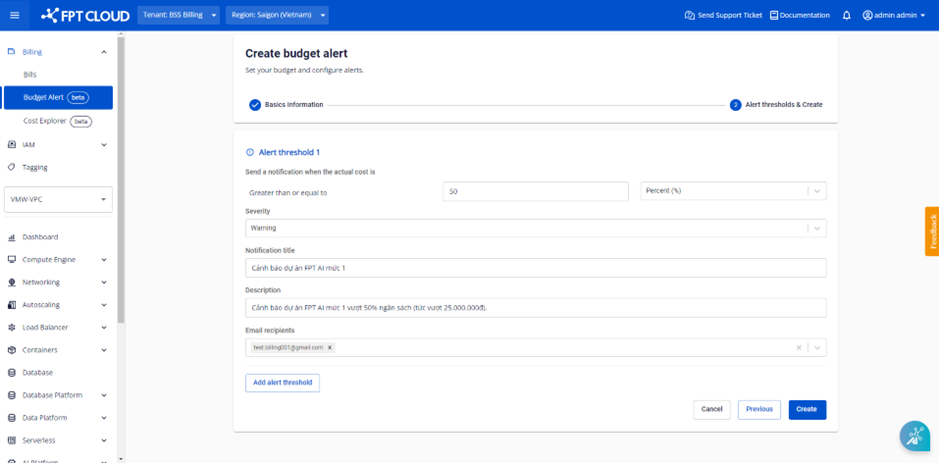
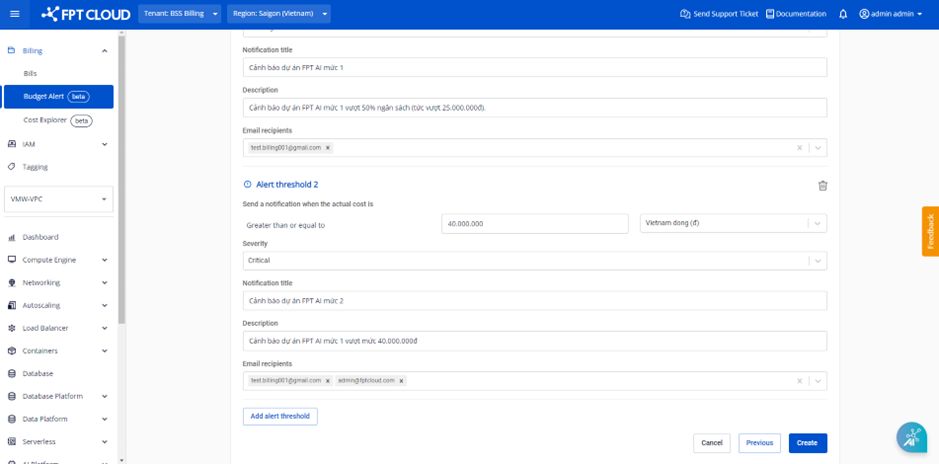 Step 5 : Select the Create button to save the Budget Alert information you just created or select the Previous button to return to the previous screen (Basic information).